

Signing back in
If your session has expired, reconnecting will prompt the Terms of Use modal again. Confirm both checkboxes and click Agree and Sign to resume trading.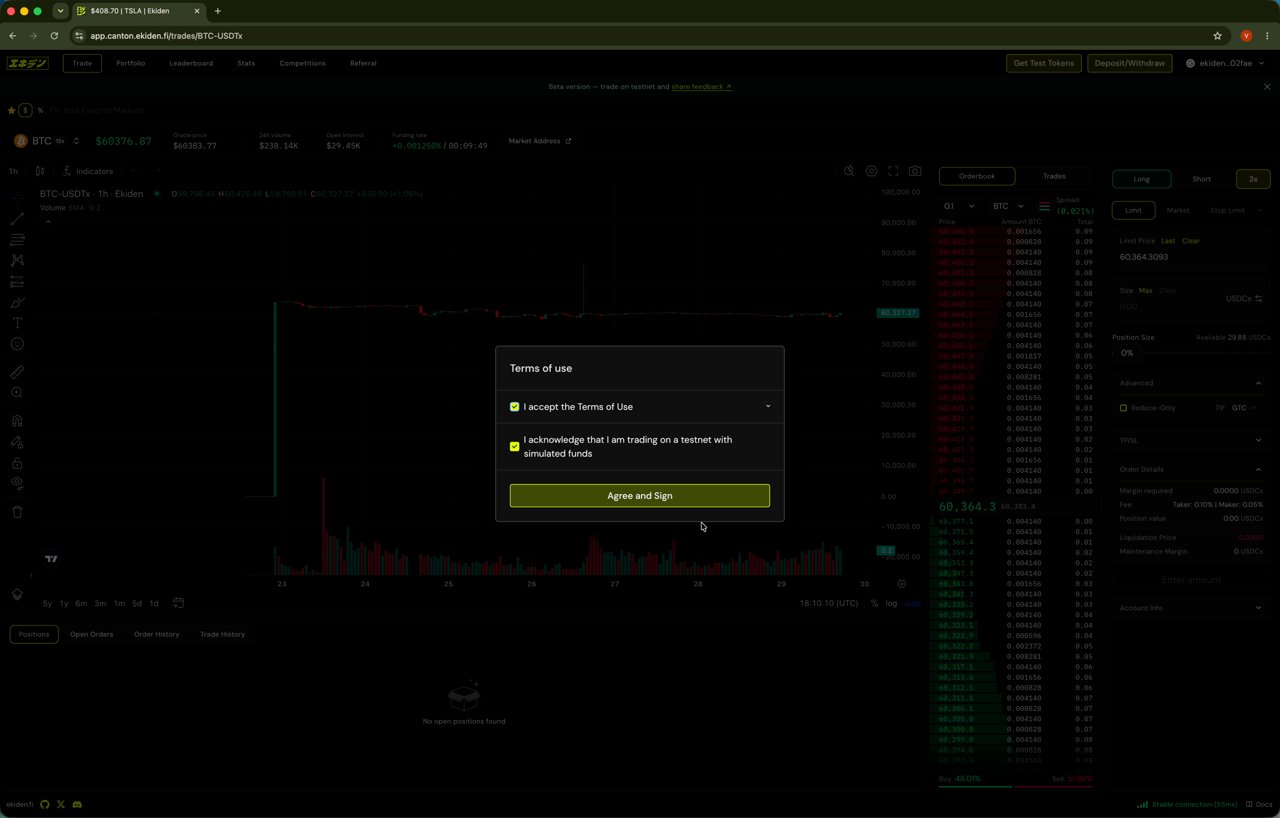
Re-confirming Terms of Use when starting a new session
Funding your account
Use Get Test Tokens to top up your Funding Account, then deposit into your Trading Account. A confirmation toast appears once the vault balance updates.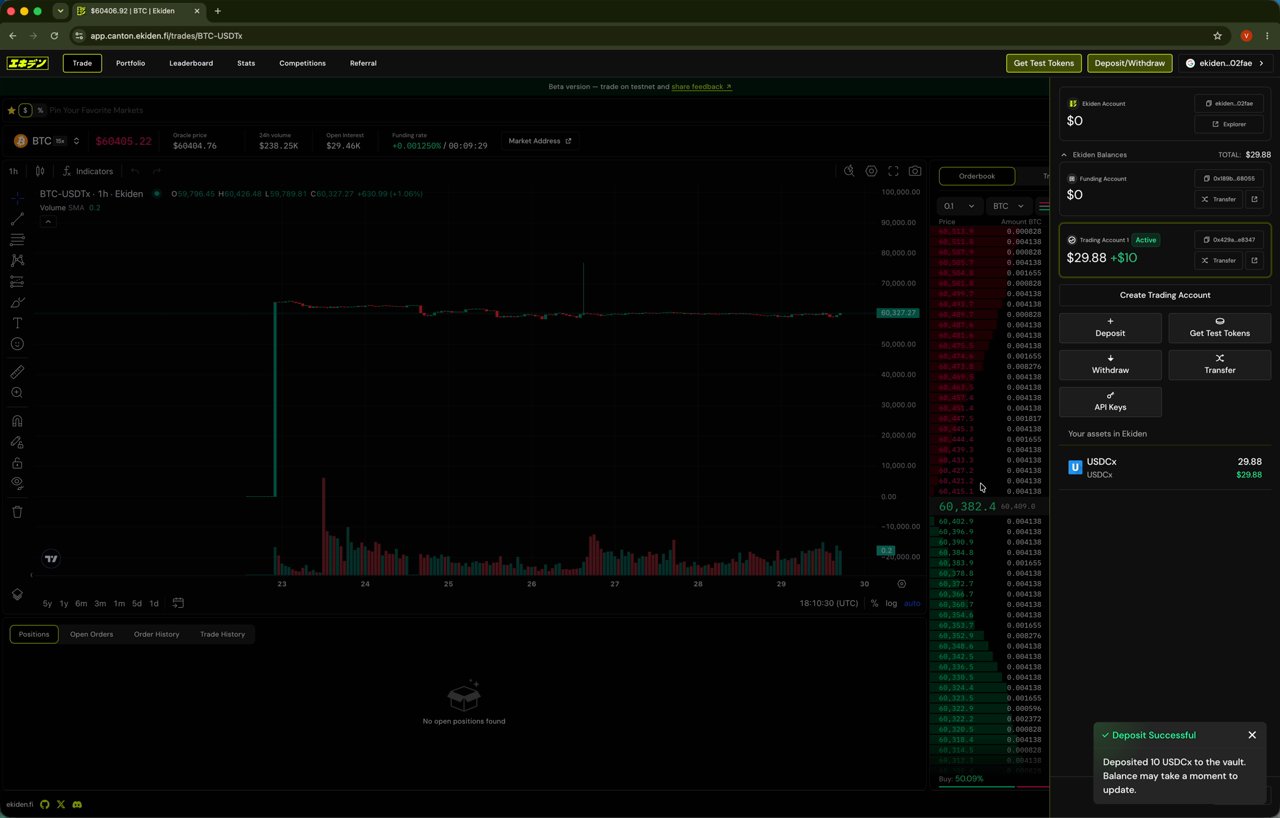
Confirmation after claiming and depositing test USDCx
Order types and Time in Force, explained
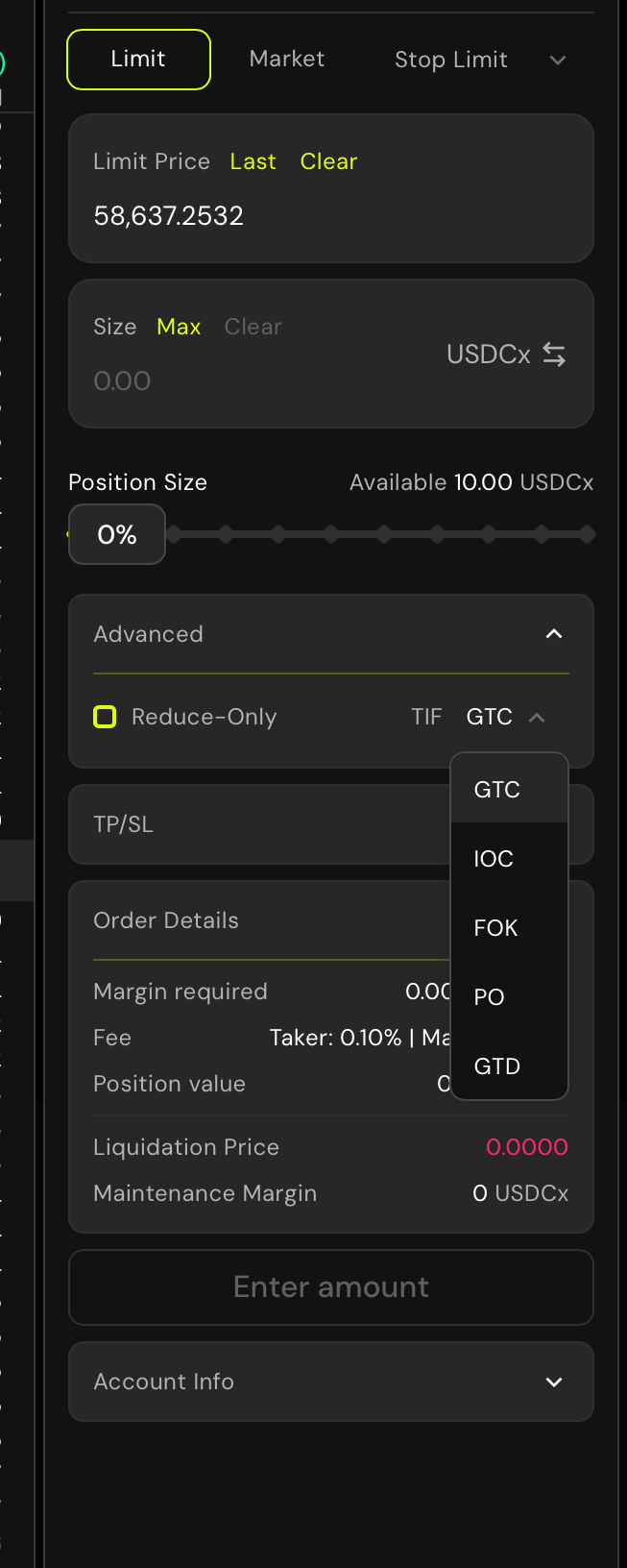
Advanced section expanded: Reduce-Only checkbox and the full TIF dropdown (GTC / IOC / FOK / PO / GTD)
Limit — why use it
Limit — why use it
Market — why use it
Market — why use it
Stop Limit — why use it
Stop Limit — why use it
Reduce-Only — why use it
Reduce-Only — why use it
Time in Force: GTC / IOC / FOK / PO / GTD — what each means
Time in Force: GTC / IOC / FOK / PO / GTD — what each means
- GTC (Good Till Cancelled) — stays open until it fills or you cancel it manually. The default for most traders.
- IOC (Immediate Or Cancel) — fills whatever portion it can immediately, cancels the rest. Avoids leaving a resting order on the book.
- FOK (Fill Or Kill) — must fill the entire size immediately or the whole order is cancelled. No partial fills.
- PO (Post Only) — guarantees your order only adds liquidity (maker), never removes it (taker); it’s rejected instead of matching immediately. Used to guarantee maker fees instead of taker fees.
- GTD (Good Till Date) — like GTC, but auto-cancels at a specific date/time you set.
Opening a position
Choose your order type and leverage
3x). The available margin updates to reflect your buying power at that leverage.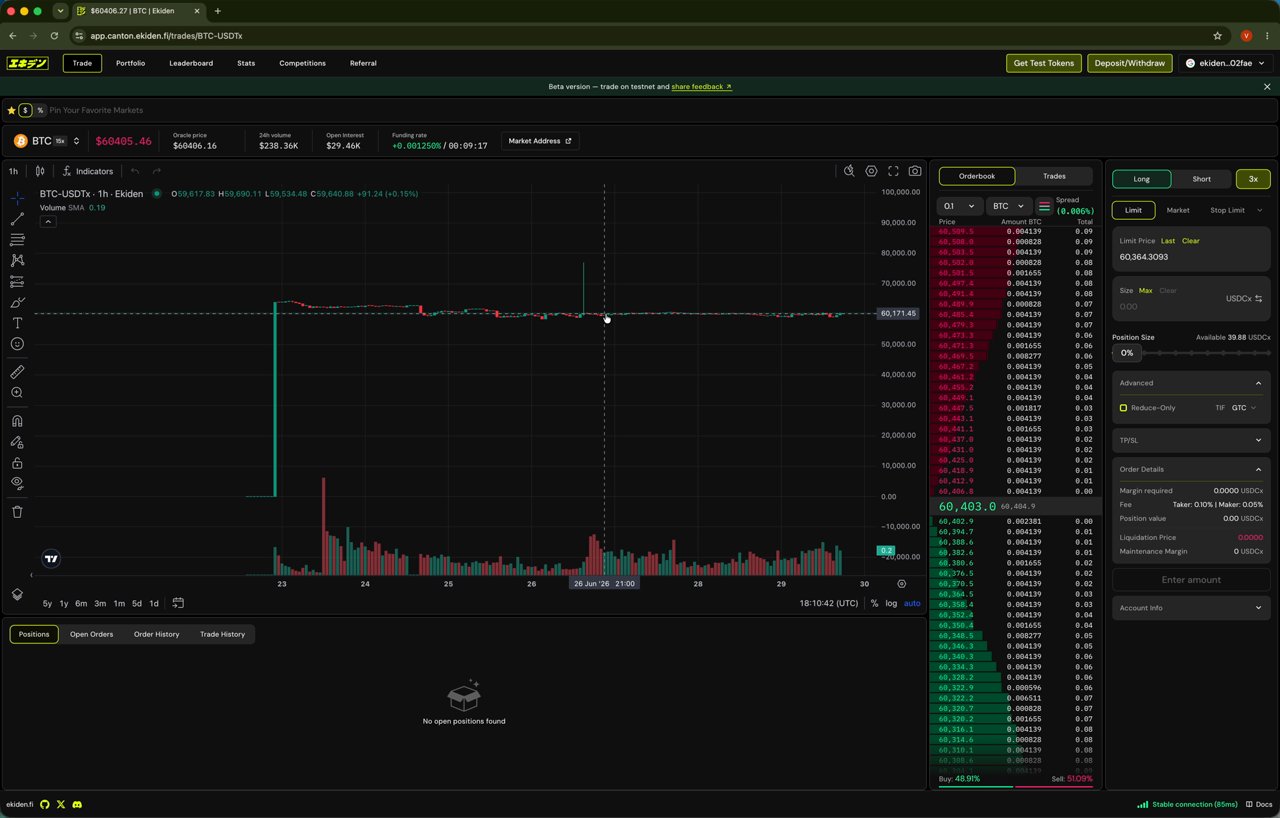
Setting 3x leverage before placing an order
Adjust leverage in detail (optional)
3x) opens an Adjust Leverage modal with more control than the quick selector:- Margin Mode: Cross — in cross mode, all positions on your Trading Account share the same margin pool, so a loss on one position can be offset by available margin from the rest of the account. (Ekiden’s UI currently shows Cross; an Isolated mode — where each position only risks the margin assigned to it specifically — is the typical alternative on perpetuals platforms, but wasn’t observed in this flow.)
- Leverage slider / stepper — drag or use +/− to pick a multiplier, up to the market’s max (shown in the modal title, e.g. “Max: 15x”). Max leverage is set per market, not account-wide — a volatile asset will usually cap out lower than BTC.
- Max Position Value — recalculates live as you change leverage, showing the largest position your current margin could open at that multiplier.
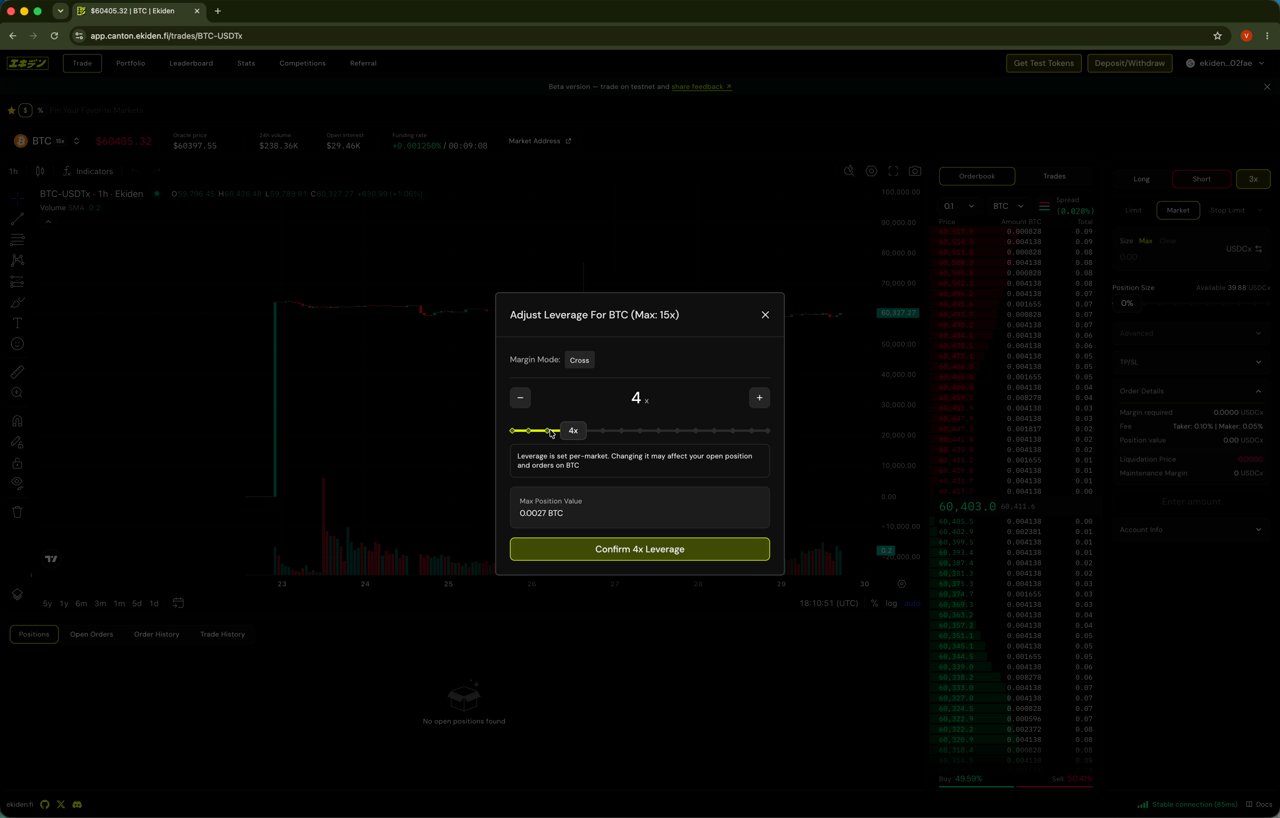
Adjust Leverage modal showing Cross margin mode and a 4x slider for BTC (15x max)
Pick Long or Short and size your order
Confirm the position in your Positions table
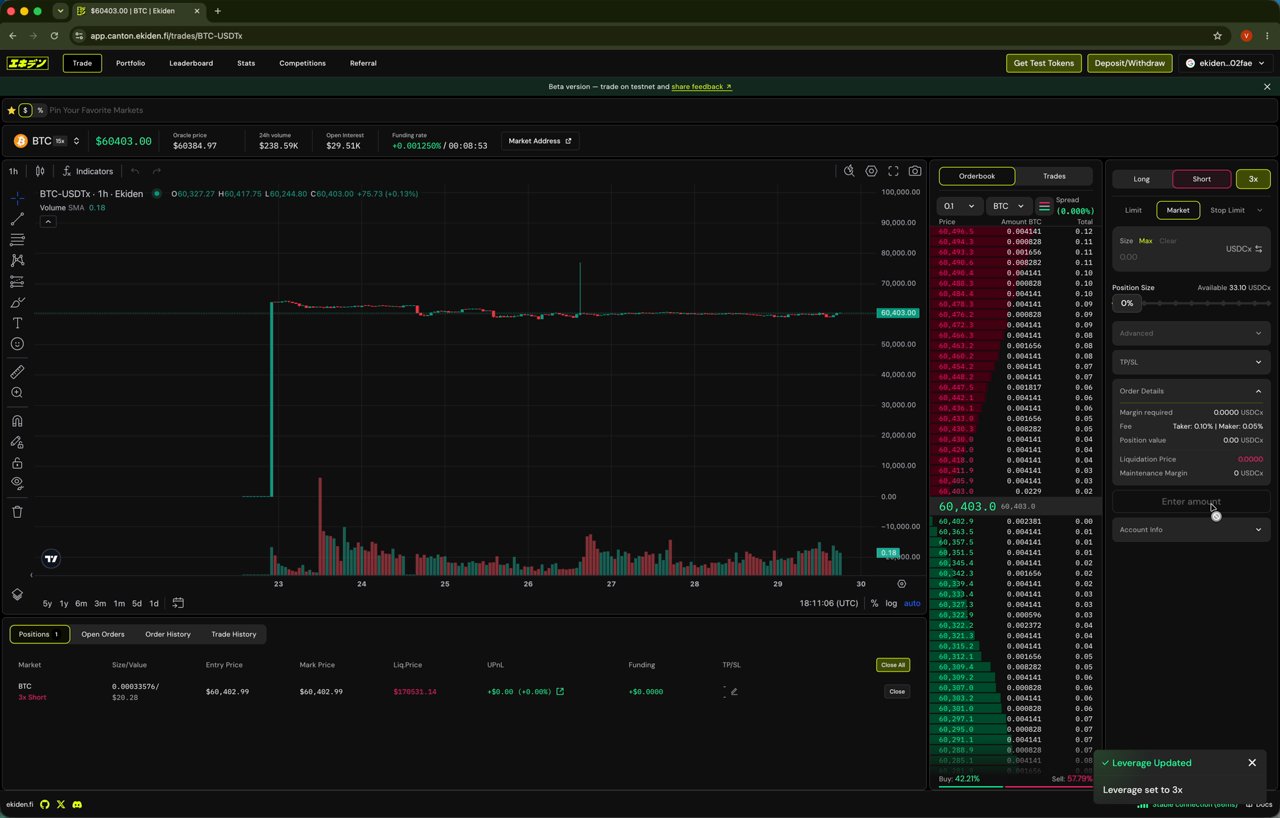
A 3x Short BTC position open with live PnL and liquidation price
Switch markets to diversify
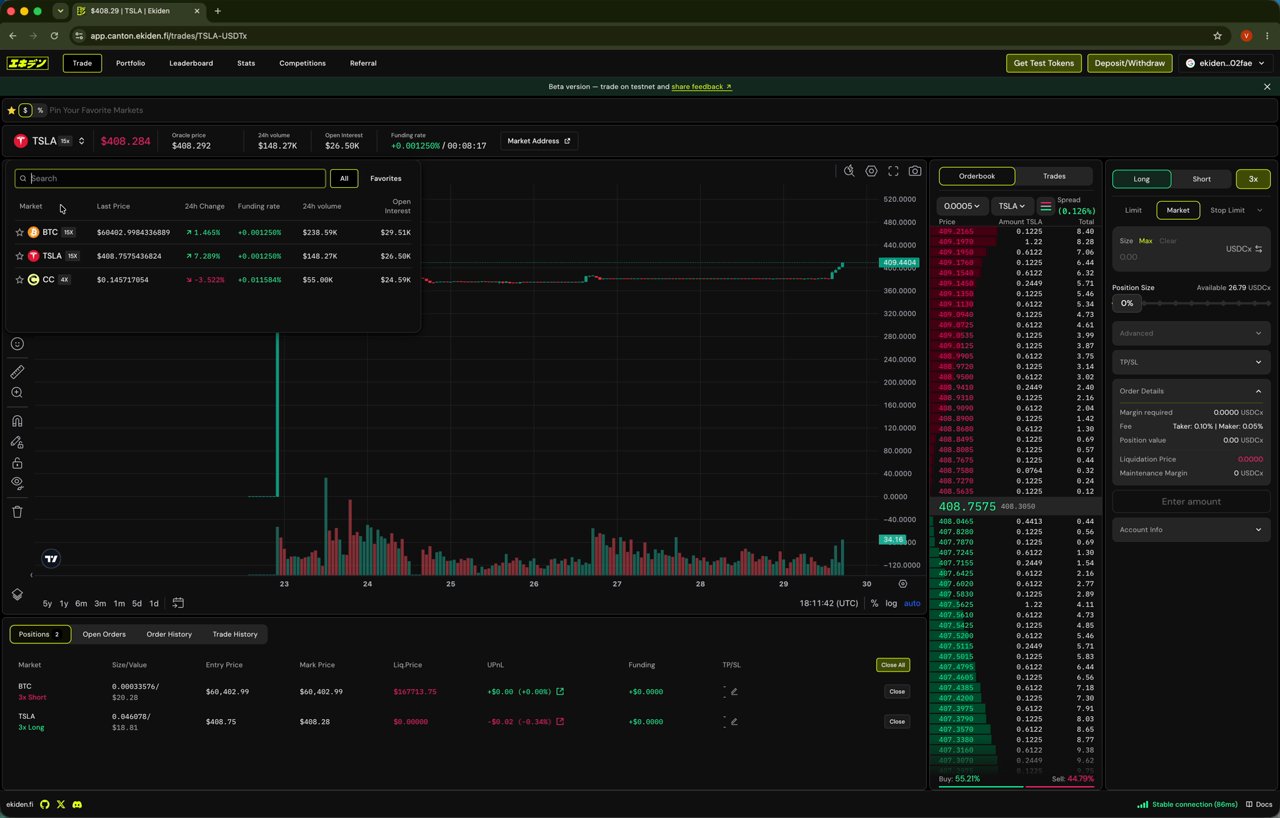
Market switcher showing BTC, TSLA, and CC pairs
TSLA-USDTx alongside your BTC short.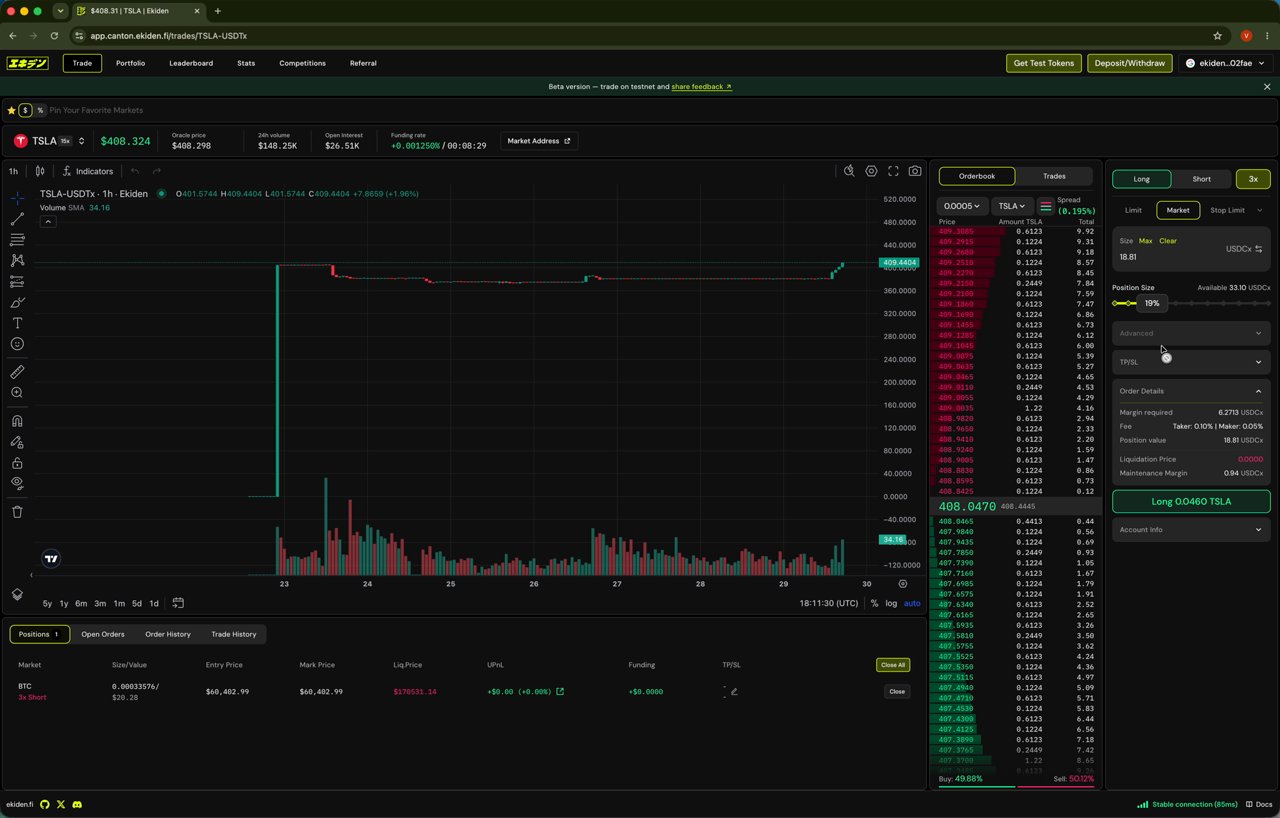
Preparing a Long order on TSLA-USDTx using the size slider
Setting Take Profit / Stop Loss
Open TP/SL on a position to define exit conditions without watching the market manually.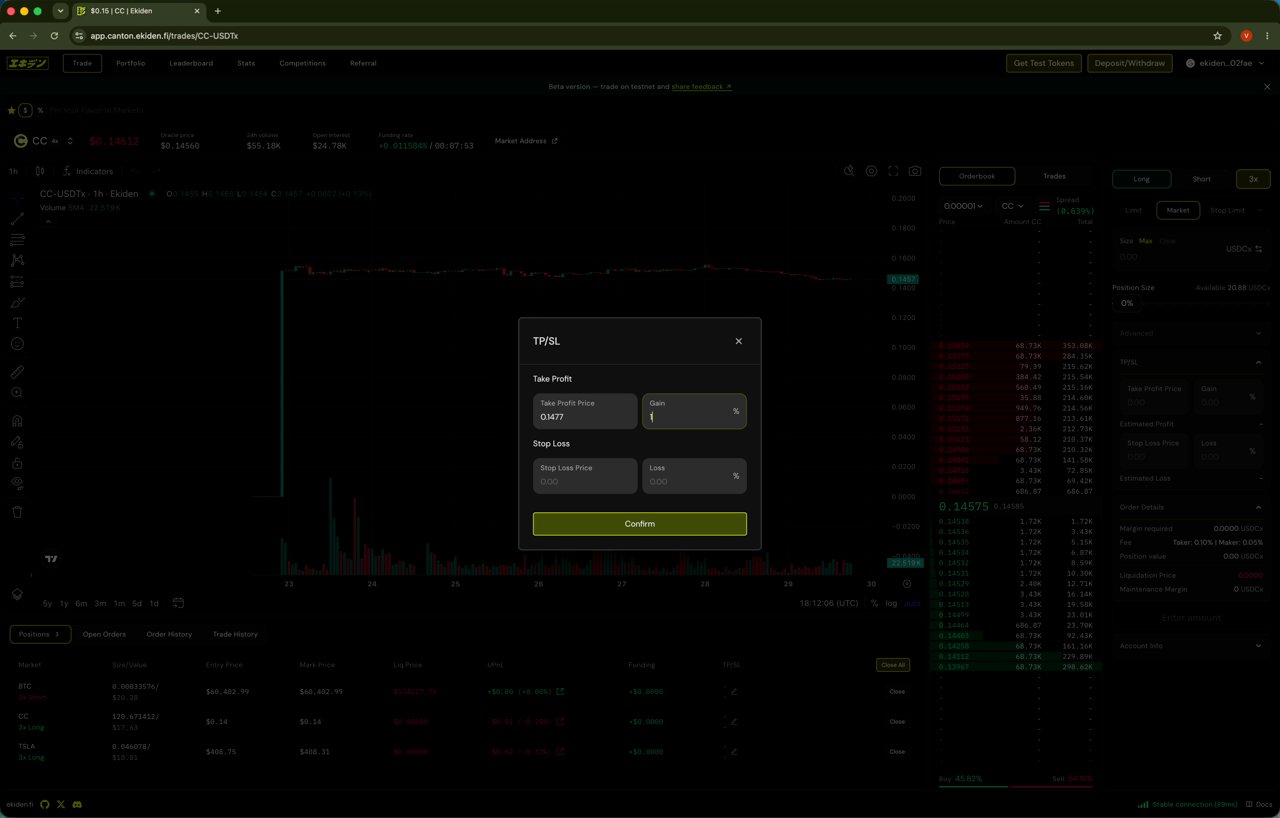
TP/SL modal with Take Profit and Stop Loss price and percentage fields
Set a Take Profit
Set a Stop Loss
Confirm
Tracking your account: Portfolio
The Portfolio tab is your account command center.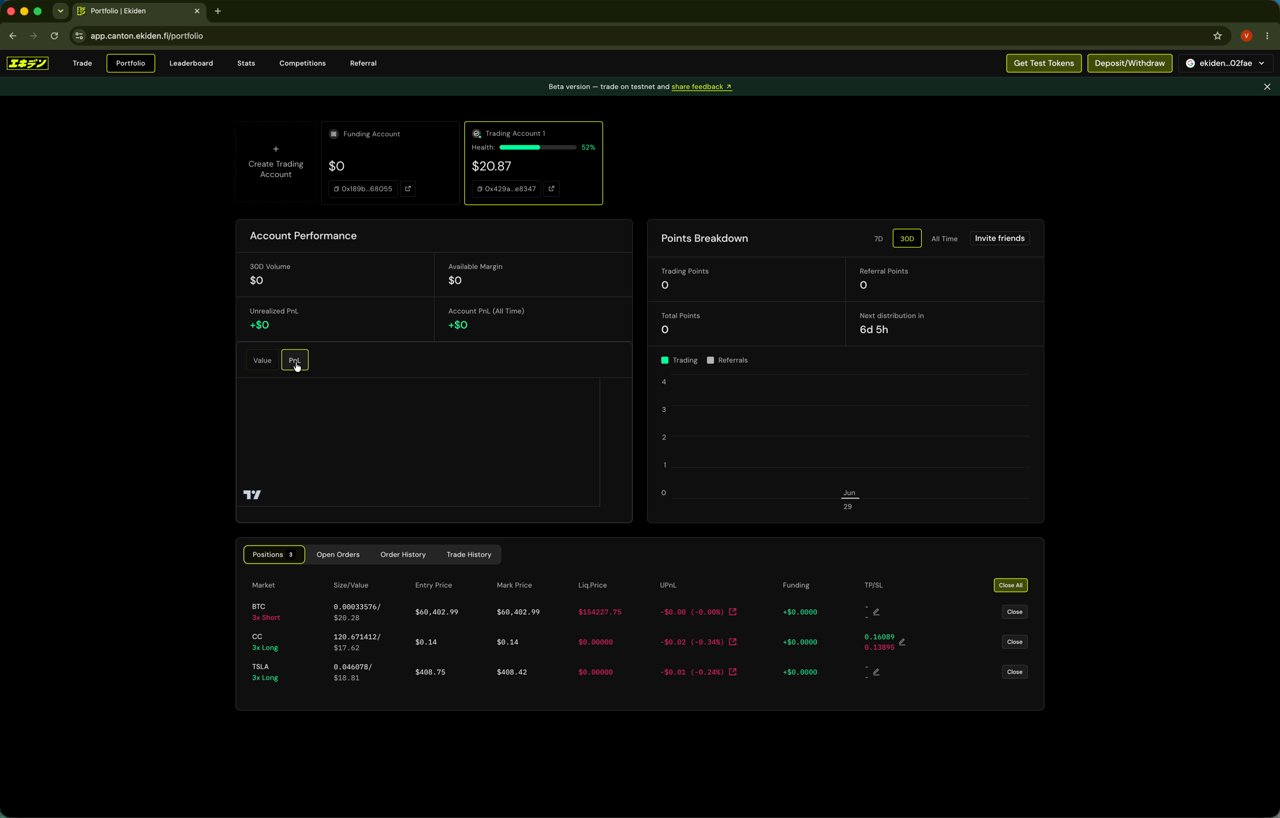
Portfolio overview with account health, performance, and points
- Funding Account and Trading Account balances, plus a Health indicator
- Account Performance: 30-day volume, available margin, unrealized PnL, and all-time account PnL
- Points Breakdown: trading points and referral points, viewable by 7D / 30D / All Time, with a countdown to the next points distribution
- A unified Positions table, plus tabs for Open Orders, Order History, and Trade History
Reviewing trade history
The Trade History tab lists every fill — timestamp, market, side (Buy/Sell), price, size/value, and fee.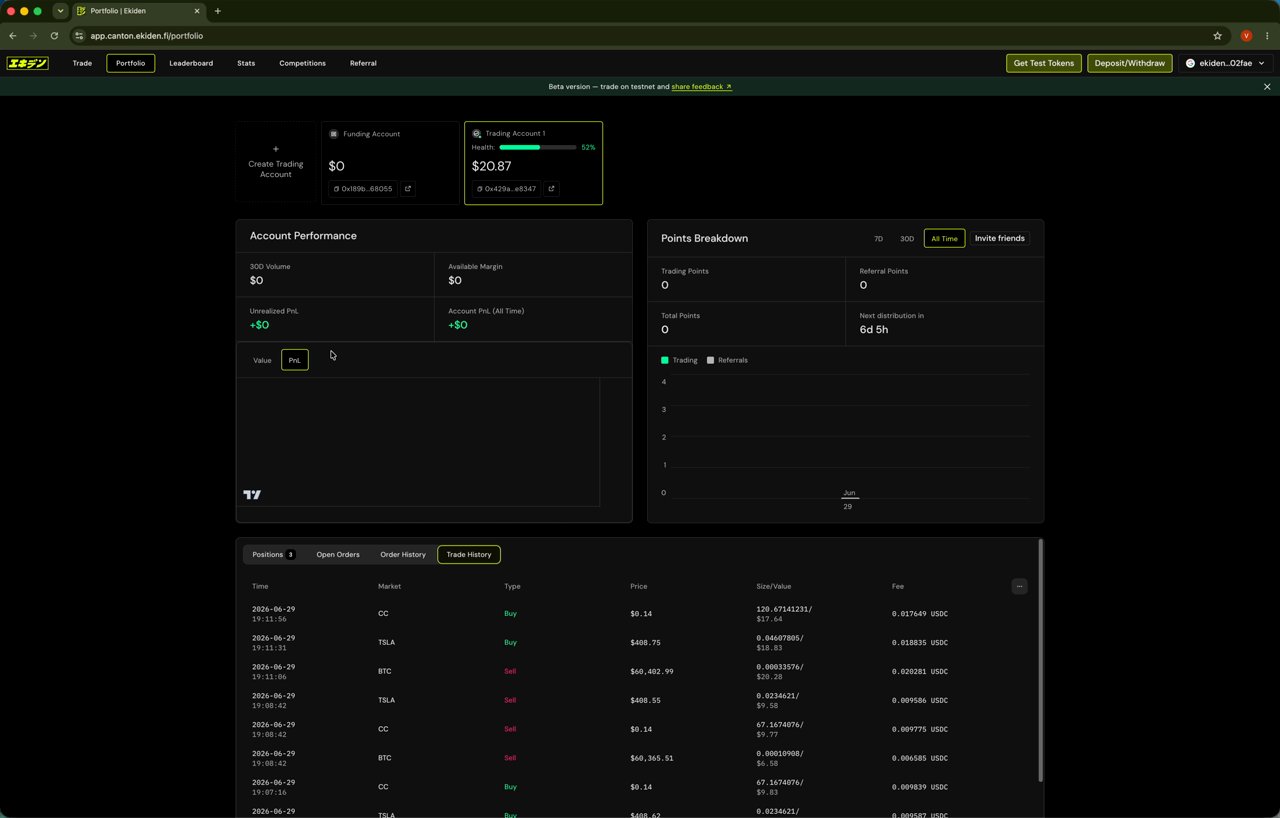
Trade history with timestamps, prices, and fees
Platform-wide stats
The Stats tab shows exchange-level metrics: 24h trading volume, active traders, total trades, and open interest, along with a per-market breakdown (price, 24h change, average funding, volume, and open interest).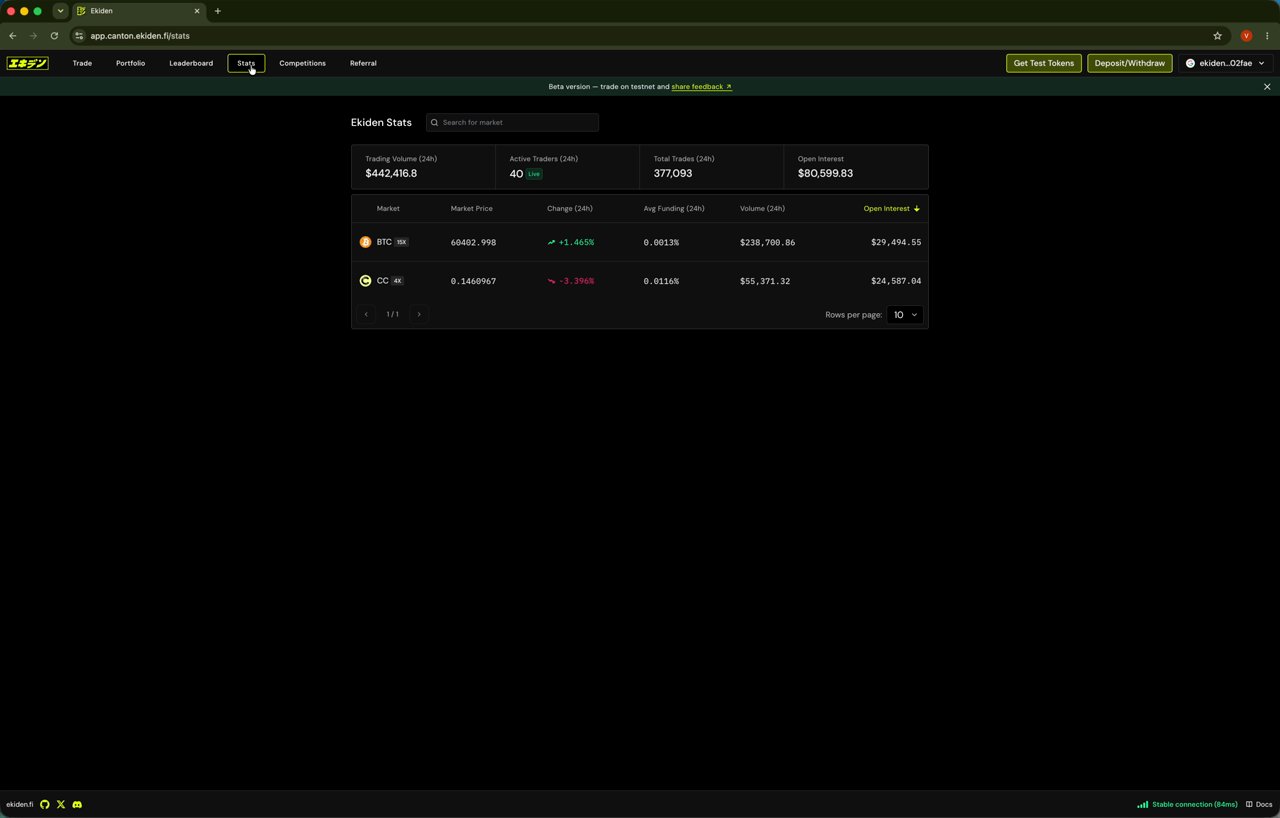
Ekiden Stats page with exchange-wide metrics
Referring other traders
The Referral tab gives you a unique referral code and link to share, plus a live count of invited users. You can copy the link directly or share it to X in one click.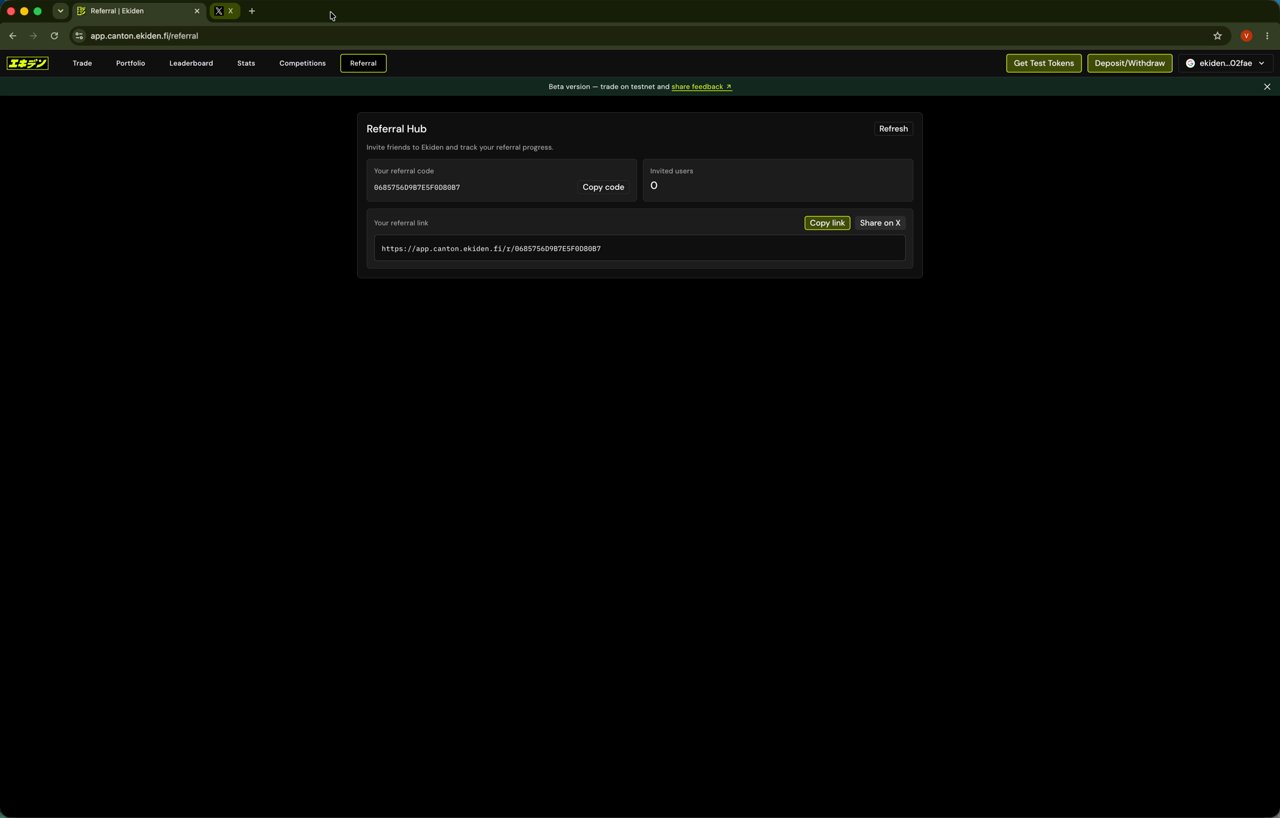
Referral Hub with code, link, and invited users count
Moving funds between accounts
Use Deposit/Withdraw → Transfer to move USDCx between your Funding Account and Trading Account without leaving the app — for example, pulling margin back out of a Trading Account after closing positions.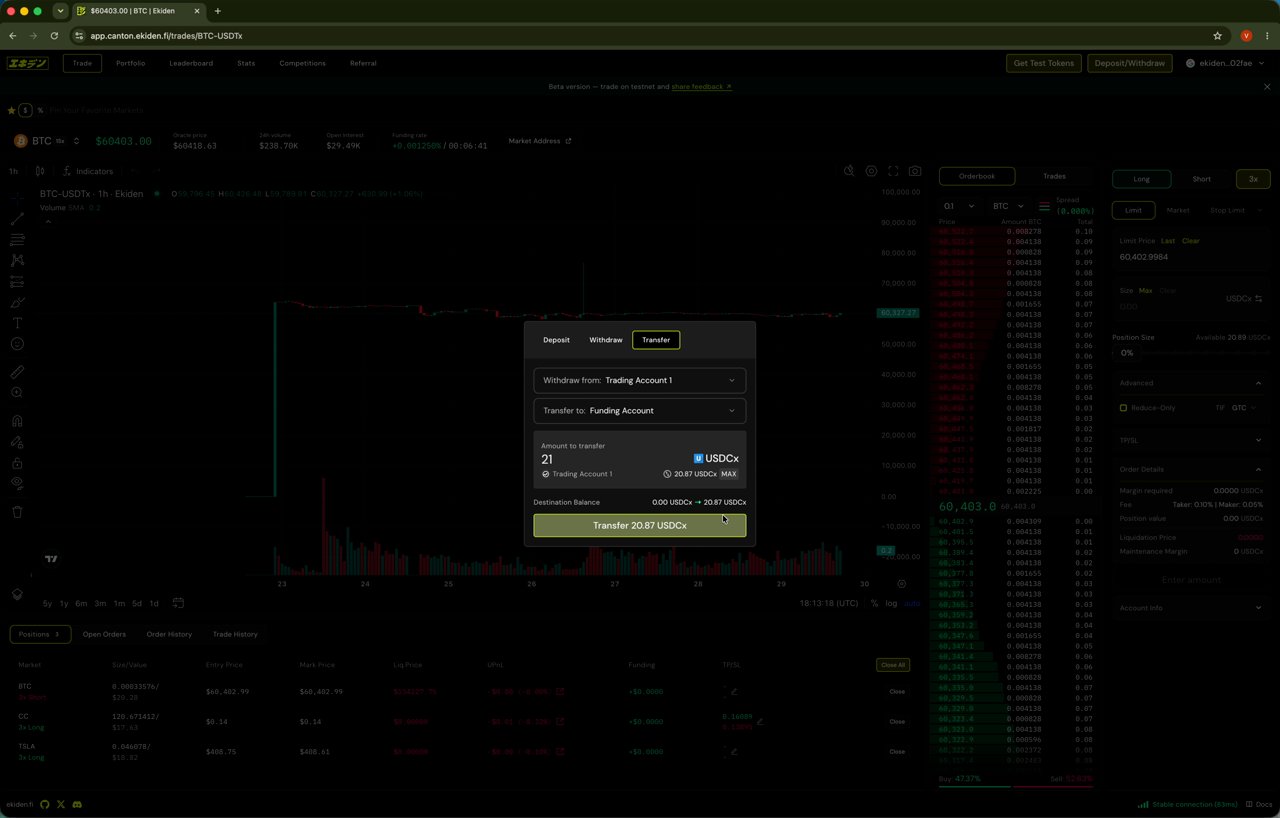
Transferring funds from a Trading Account back to the Funding Account
Open Deposit/Withdraw
Select the Transfer tab
Enter an amount and confirm