> ## Documentation Index
> Fetch the complete documentation index at: https://docs.ekiden.fi/llms.txt
> Use this file to discover all available pages before exploring further.
# Trading on Ekiden
> Open and manage positions, set leverage and TP/SL, and use Portfolio, Stats, and Referral on Ekiden.
This guide is for users who already have an Ekiden account and wallet connected. It covers placing trades, managing risk, and navigating the rest of the platform.
If you haven't connected a wallet or funded a Trading Account yet, start with [Getting Started](./getting-started) first.
## Signing back in
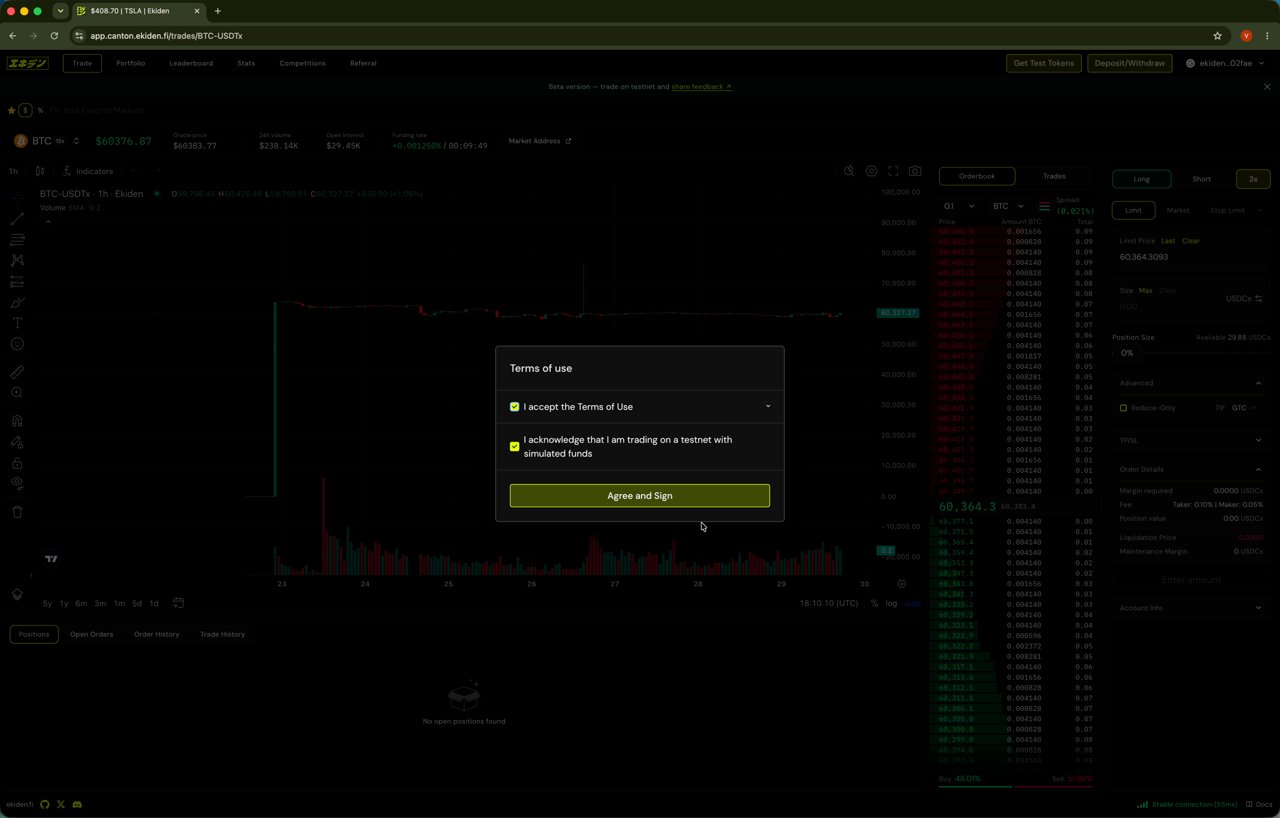
If your session has expired, reconnecting will prompt the **Terms of Use** modal again. Confirm both checkboxes and click **Agree and Sign** to resume trading.
 ## Funding your account
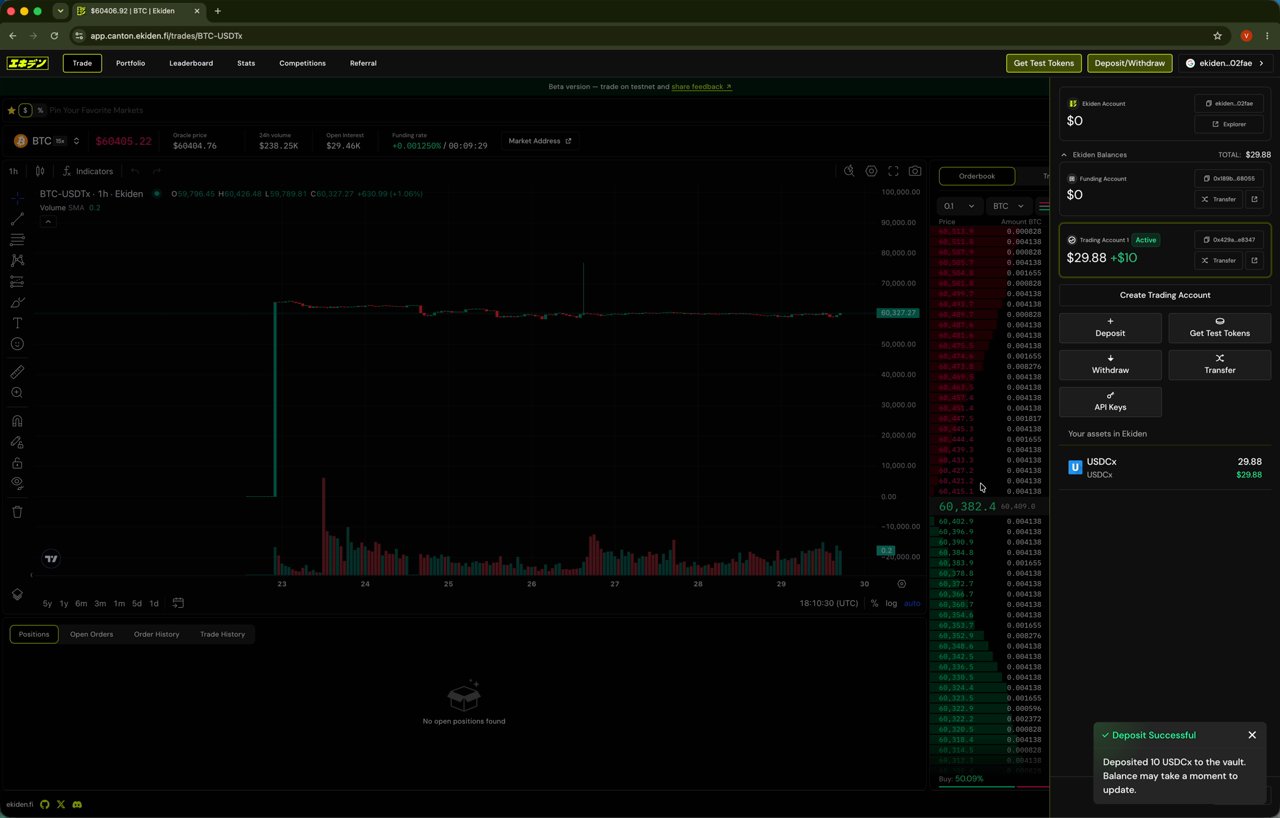
Use **Get Test Tokens** to top up your Funding Account, then deposit into your Trading Account. A confirmation toast appears once the vault balance updates.
## Funding your account
Use **Get Test Tokens** to top up your Funding Account, then deposit into your Trading Account. A confirmation toast appears once the vault balance updates.
 ## Order types and Time in Force, explained
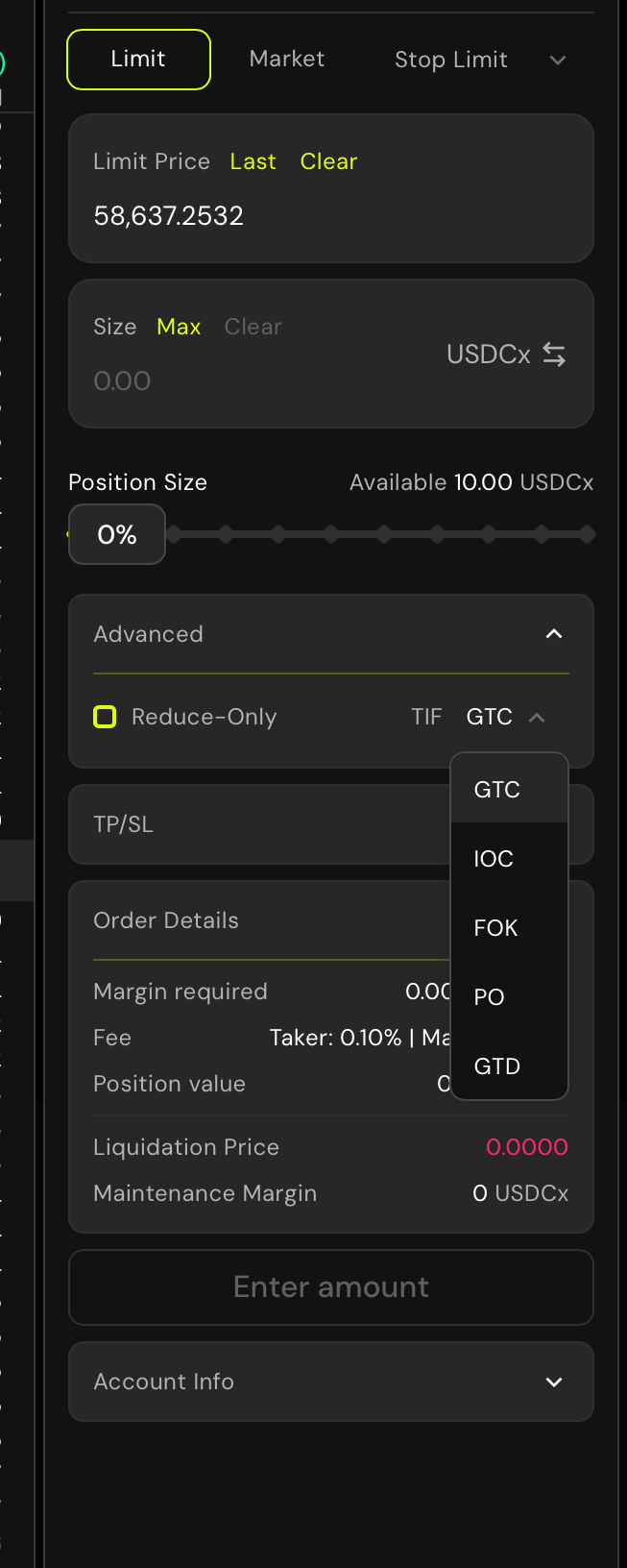
Ekiden's order panel has three order type tabs — **Limit**, **Market**, and **Stop Limit** — plus an **Advanced** section with **Reduce-Only** and a **Time in Force (TIF)** dropdown. That Advanced section is where any additional order types would live if the panel had them; it doesn't — it only exposes Reduce-Only and TIF. So functionally, these three order types (each combinable with the five TIF modifiers below and Reduce-Only) are the complete current set.
## Order types and Time in Force, explained
Ekiden's order panel has three order type tabs — **Limit**, **Market**, and **Stop Limit** — plus an **Advanced** section with **Reduce-Only** and a **Time in Force (TIF)** dropdown. That Advanced section is where any additional order types would live if the panel had them; it doesn't — it only exposes Reduce-Only and TIF. So functionally, these three order types (each combinable with the five TIF modifiers below and Reduce-Only) are the complete current set.
 You set the exact price you're willing to trade at. The order sits on the book and only fills at your price or better. Use it when you want price certainty and are fine waiting (or not filling at all if the market never reaches your price).
You skip price selection entirely and fill immediately against the best available price(s) in the book. Use it when speed/certainty of execution matters more than price precision — at the cost of potential slippage on thin order books.
A **Limit** order that only becomes active once the market trades through a **trigger price** you set. Commonly used to enter on a breakout, or to defend a position (a defensive stop) without watching the screen — but unlike a plain stop-market, once triggered it still behaves like a Limit order, so in a fast-moving market it can be triggered and still not fill if price runs past your limit.
Restricts the order to only reduce or close your existing position on that market — it can never open a new position or flip you to the opposite side, even if the size you enter would otherwise overshoot. Use it for exits and stop-losses where you want a hard guarantee you can't accidentally add exposure.
These control how long an order is allowed to rest and how it can be filled, independent of order type:
* **GTC (Good Till Cancelled)** — stays open until it fills or you cancel it manually. The default for most traders.
* **IOC (Immediate Or Cancel)** — fills whatever portion it can immediately, cancels the rest. Avoids leaving a resting order on the book.
* **FOK (Fill Or Kill)** — must fill the entire size immediately or the whole order is cancelled. No partial fills.
* **PO (Post Only)** — guarantees your order only adds liquidity (maker), never removes it (taker); it's rejected instead of matching immediately. Used to guarantee maker fees instead of taker fees.
* **GTD (Good Till Date)** — like GTC, but auto-cancels at a specific date/time you set.
## Opening a position
In the order panel, select **Limit**, **Market**, or **Stop Limit**, then set your leverage multiplier (e.g. `3x`). The available margin updates to reflect your buying power at that leverage.
You set the exact price you're willing to trade at. The order sits on the book and only fills at your price or better. Use it when you want price certainty and are fine waiting (or not filling at all if the market never reaches your price).
You skip price selection entirely and fill immediately against the best available price(s) in the book. Use it when speed/certainty of execution matters more than price precision — at the cost of potential slippage on thin order books.
A **Limit** order that only becomes active once the market trades through a **trigger price** you set. Commonly used to enter on a breakout, or to defend a position (a defensive stop) without watching the screen — but unlike a plain stop-market, once triggered it still behaves like a Limit order, so in a fast-moving market it can be triggered and still not fill if price runs past your limit.
Restricts the order to only reduce or close your existing position on that market — it can never open a new position or flip you to the opposite side, even if the size you enter would otherwise overshoot. Use it for exits and stop-losses where you want a hard guarantee you can't accidentally add exposure.
These control how long an order is allowed to rest and how it can be filled, independent of order type:
* **GTC (Good Till Cancelled)** — stays open until it fills or you cancel it manually. The default for most traders.
* **IOC (Immediate Or Cancel)** — fills whatever portion it can immediately, cancels the rest. Avoids leaving a resting order on the book.
* **FOK (Fill Or Kill)** — must fill the entire size immediately or the whole order is cancelled. No partial fills.
* **PO (Post Only)** — guarantees your order only adds liquidity (maker), never removes it (taker); it's rejected instead of matching immediately. Used to guarantee maker fees instead of taker fees.
* **GTD (Good Till Date)** — like GTC, but auto-cancels at a specific date/time you set.
## Opening a position
In the order panel, select **Limit**, **Market**, or **Stop Limit**, then set your leverage multiplier (e.g. `3x`). The available margin updates to reflect your buying power at that leverage.
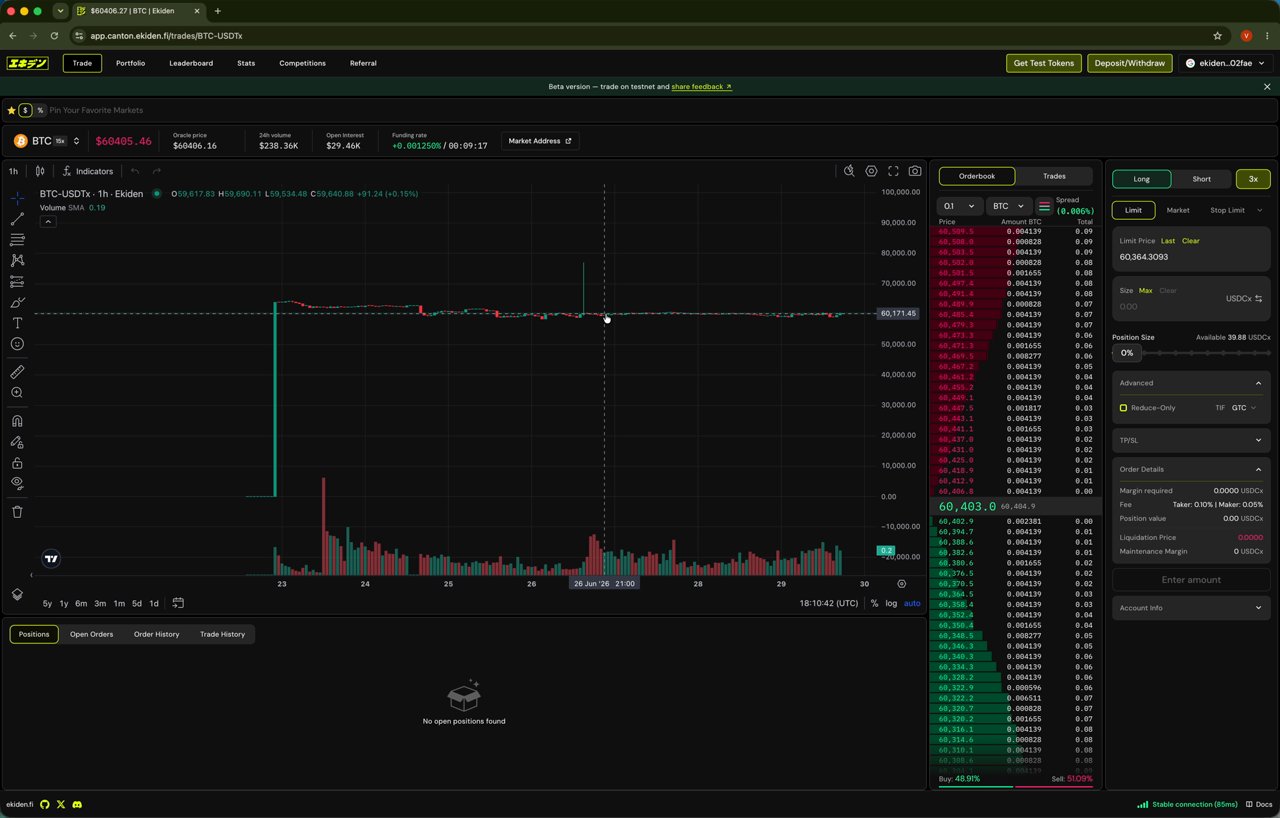 Clicking the leverage value (e.g. `3x`) opens an **Adjust Leverage** modal with more control than the quick selector:
* **Margin Mode: Cross** — in cross mode, all positions on your Trading Account share the same margin pool, so a loss on one position can be offset by available margin from the rest of the account. (Ekiden's UI currently shows Cross; an Isolated mode — where each position only risks the margin assigned to it specifically — is the typical alternative on perpetuals platforms, but wasn't observed in this flow.)
* **Leverage slider / stepper** — drag or use +/− to pick a multiplier, up to the market's max (shown in the modal title, e.g. "Max: 15x"). Max leverage is set **per market**, not account-wide — a volatile asset will usually cap out lower than BTC.
* **Max Position Value** — recalculates live as you change leverage, showing the largest position your current margin could open at that multiplier.
Clicking the leverage value (e.g. `3x`) opens an **Adjust Leverage** modal with more control than the quick selector:
* **Margin Mode: Cross** — in cross mode, all positions on your Trading Account share the same margin pool, so a loss on one position can be offset by available margin from the rest of the account. (Ekiden's UI currently shows Cross; an Isolated mode — where each position only risks the margin assigned to it specifically — is the typical alternative on perpetuals platforms, but wasn't observed in this flow.)
* **Leverage slider / stepper** — drag or use +/− to pick a multiplier, up to the market's max (shown in the modal title, e.g. "Max: 15x"). Max leverage is set **per market**, not account-wide — a volatile asset will usually cap out lower than BTC.
* **Max Position Value** — recalculates live as you change leverage, showing the largest position your current margin could open at that multiplier.
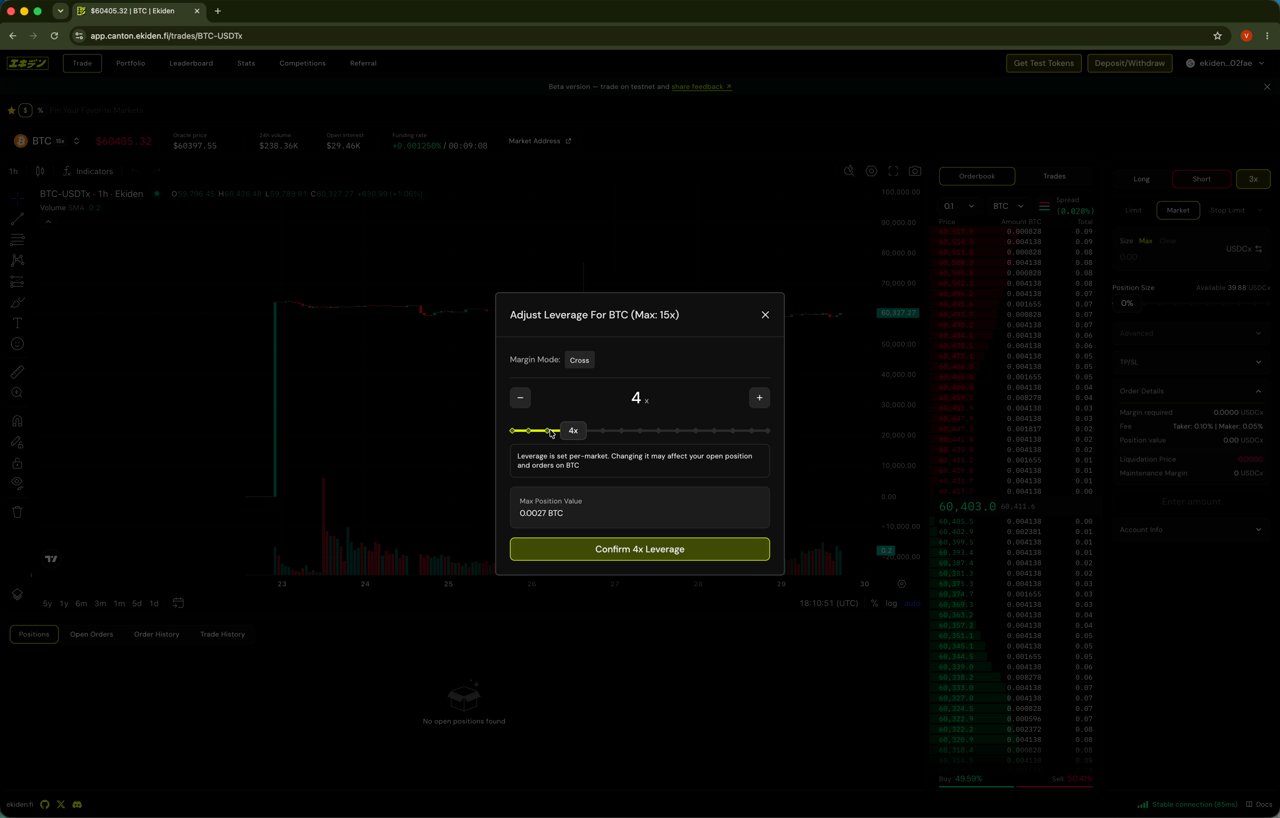 The modal explicitly warns: **"Leverage is set per-market. Changing it may affect your open position and orders on \[market]."** If you already have an open position on that market, raising or lowering leverage changes your liquidation price immediately — confirm the new **Max Position Value** and liquidation impact before clicking **Confirm**.
Click **Confirm \[X]x Leverage** to apply.
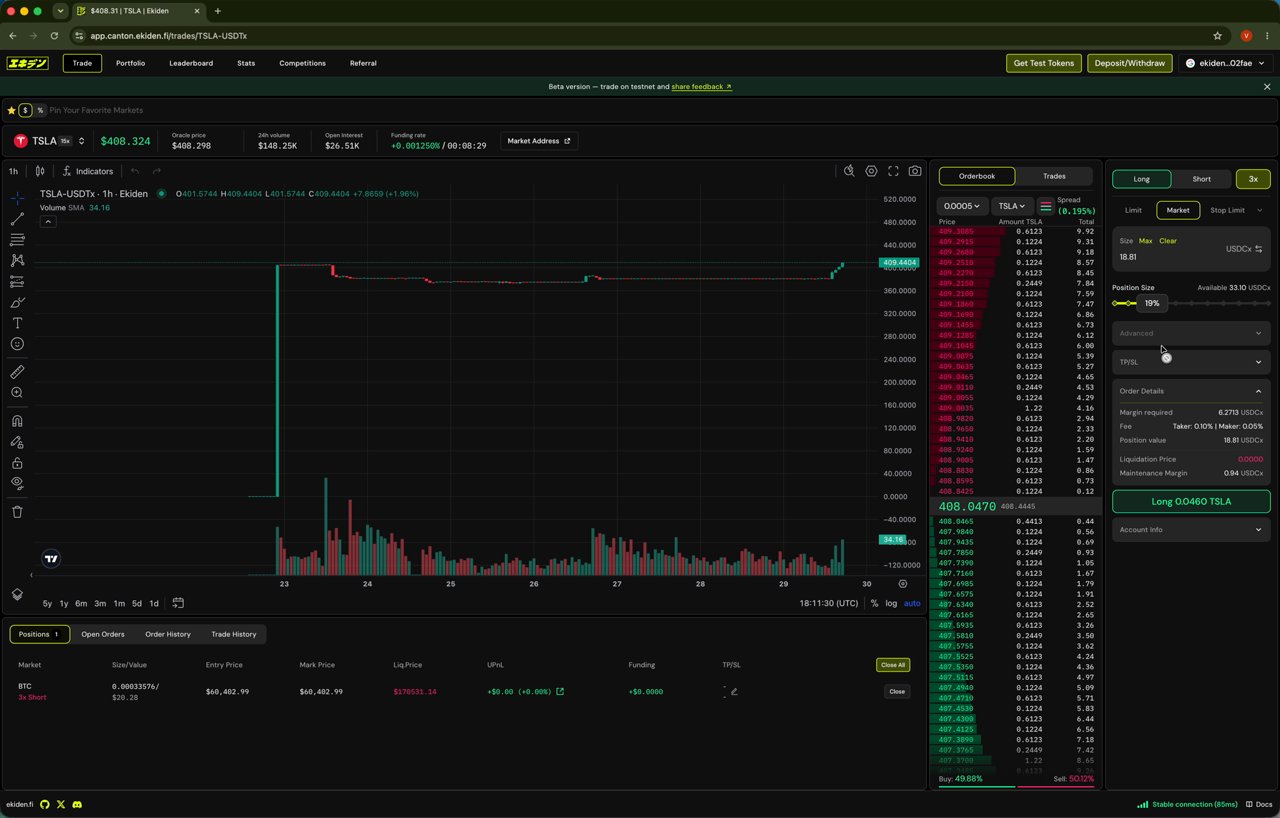
Toggle **Long** or **Short**, enter a size (or drag the percentage slider to use a portion of your available margin), and submit. Market orders fill immediately at the current price.
Filled orders appear instantly in the **Positions** panel at the bottom of the screen, showing size, entry price, mark price, liquidation price, unrealized PnL, and funding. Each row has a **Close** button.
The modal explicitly warns: **"Leverage is set per-market. Changing it may affect your open position and orders on \[market]."** If you already have an open position on that market, raising or lowering leverage changes your liquidation price immediately — confirm the new **Max Position Value** and liquidation impact before clicking **Confirm**.
Click **Confirm \[X]x Leverage** to apply.
Toggle **Long** or **Short**, enter a size (or drag the percentage slider to use a portion of your available margin), and submit. Market orders fill immediately at the current price.
Filled orders appear instantly in the **Positions** panel at the bottom of the screen, showing size, entry price, mark price, liquidation price, unrealized PnL, and funding. Each row has a **Close** button.
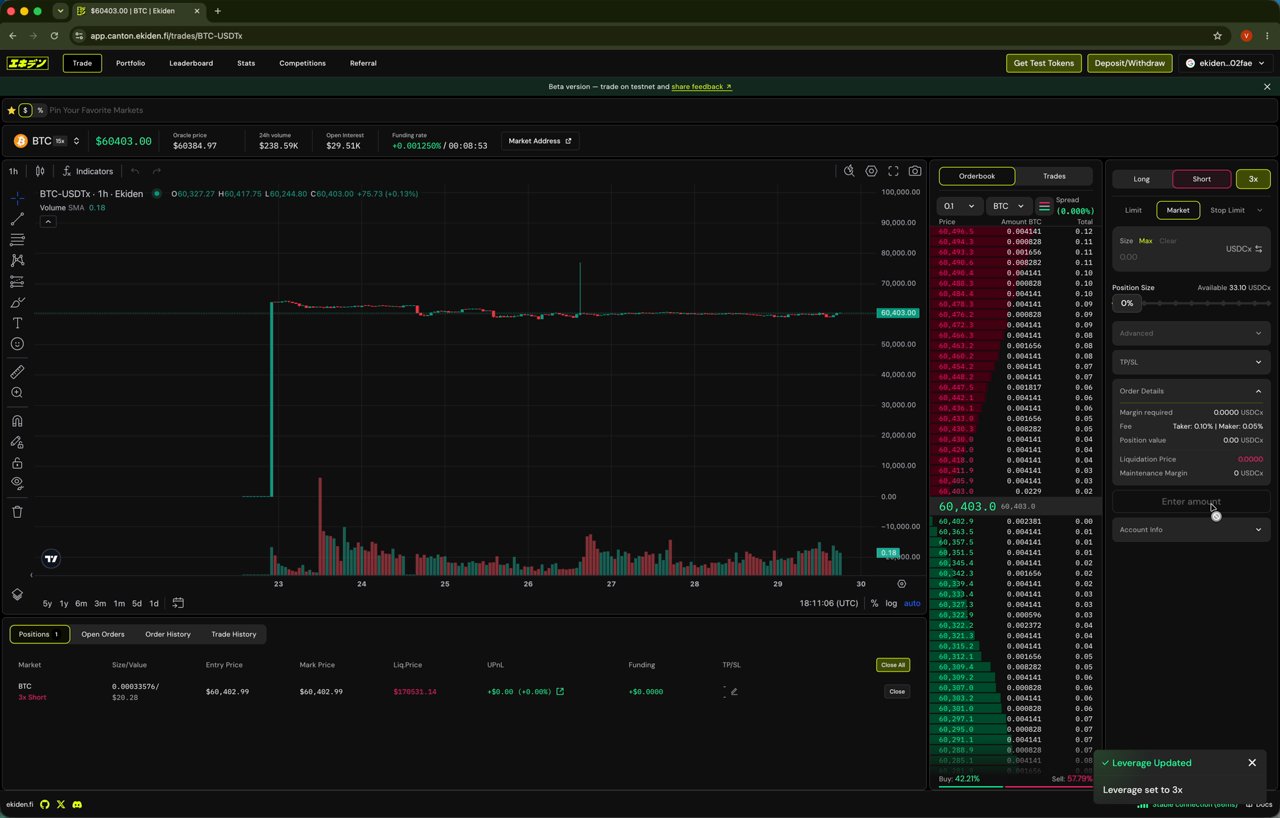 **How PnL is calculated, conceptually:** Unrealized PnL compares your position's **entry price** to the current **mark price** (a smoothed reference price used for PnL and liquidation, not necessarily the last traded price), scaled by position size and direction (Long gains as mark price rises; Short gains as it falls). **Liquidation Price** is the mark price at which your posted margin would be fully consumed by losses — it moves closer to your entry price as leverage increases, which is why higher leverage means a smaller adverse move can liquidate you.
Use the market dropdown (top-left of the chart) to search and switch between trading pairs. Each row shows last price, 24h change, funding rate, 24h volume, and open interest.
**How PnL is calculated, conceptually:** Unrealized PnL compares your position's **entry price** to the current **mark price** (a smoothed reference price used for PnL and liquidation, not necessarily the last traded price), scaled by position size and direction (Long gains as mark price rises; Short gains as it falls). **Liquidation Price** is the mark price at which your posted margin would be fully consumed by losses — it moves closer to your entry price as leverage increases, which is why higher leverage means a smaller adverse move can liquidate you.
Use the market dropdown (top-left of the chart) to search and switch between trading pairs. Each row shows last price, 24h change, funding rate, 24h volume, and open interest.
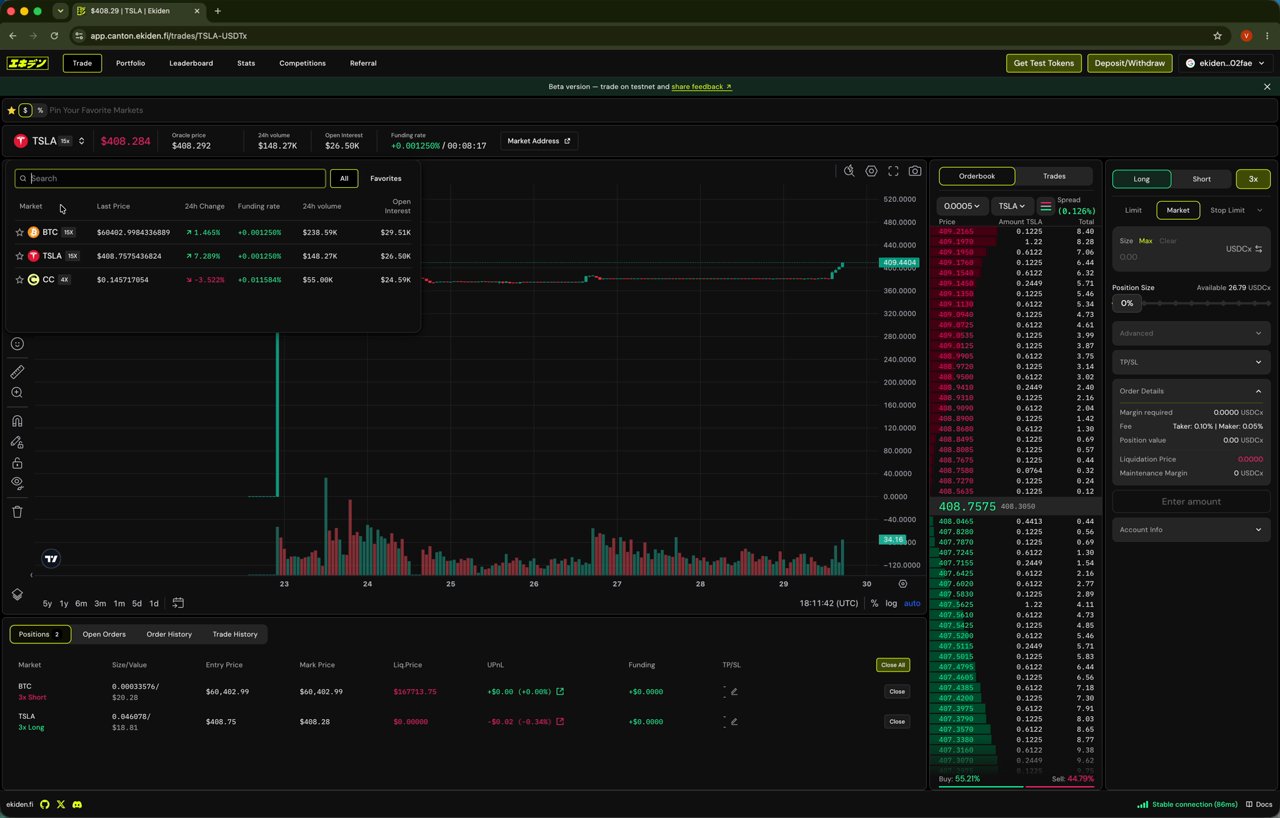 Repeat the order flow on a new market to open additional positions — for example, a Long on `TSLA-USDTx` alongside your BTC short.
 ## Setting Take Profit / Stop Loss
Open **TP/SL** on a position to define exit conditions without watching the market manually.
## Setting Take Profit / Stop Loss
Open **TP/SL** on a position to define exit conditions without watching the market manually.
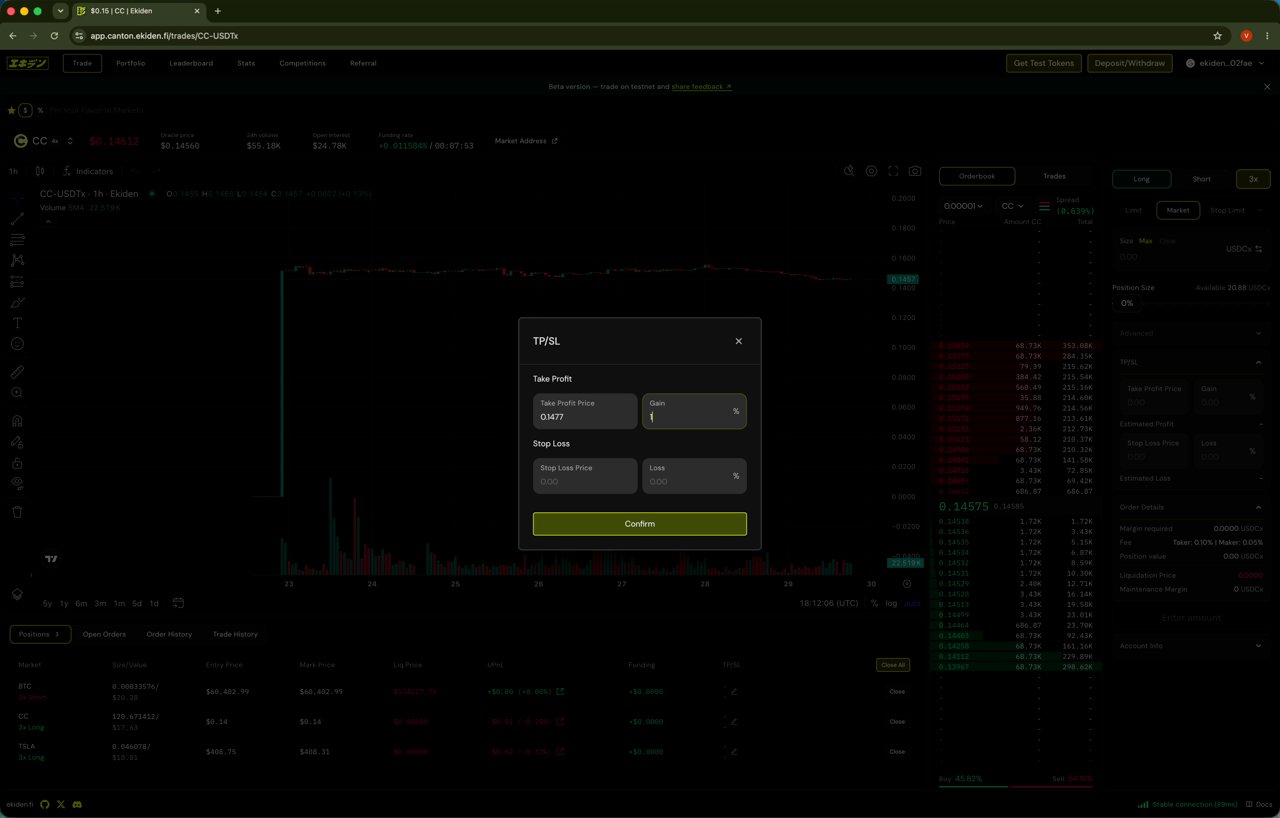 Enter a **Take Profit Price** or a target **Gain %** — the other field calculates automatically.
Enter a **Stop Loss Price** or a maximum **Loss %**.
Click **Confirm**. Your TP/SL levels appear inline in the Positions table and can be edited at any time via the pencil icon.
The order panel also exposes a **Time in Force** setting (`GTC`, `IOC`, `FOK`, `PO`, `GTD`) under **Advanced** — useful for controlling exactly how and when a limit order can fill.
## Tracking your account: Portfolio
The **Portfolio** tab is your account command center.
Enter a **Take Profit Price** or a target **Gain %** — the other field calculates automatically.
Enter a **Stop Loss Price** or a maximum **Loss %**.
Click **Confirm**. Your TP/SL levels appear inline in the Positions table and can be edited at any time via the pencil icon.
The order panel also exposes a **Time in Force** setting (`GTC`, `IOC`, `FOK`, `PO`, `GTD`) under **Advanced** — useful for controlling exactly how and when a limit order can fill.
## Tracking your account: Portfolio
The **Portfolio** tab is your account command center.
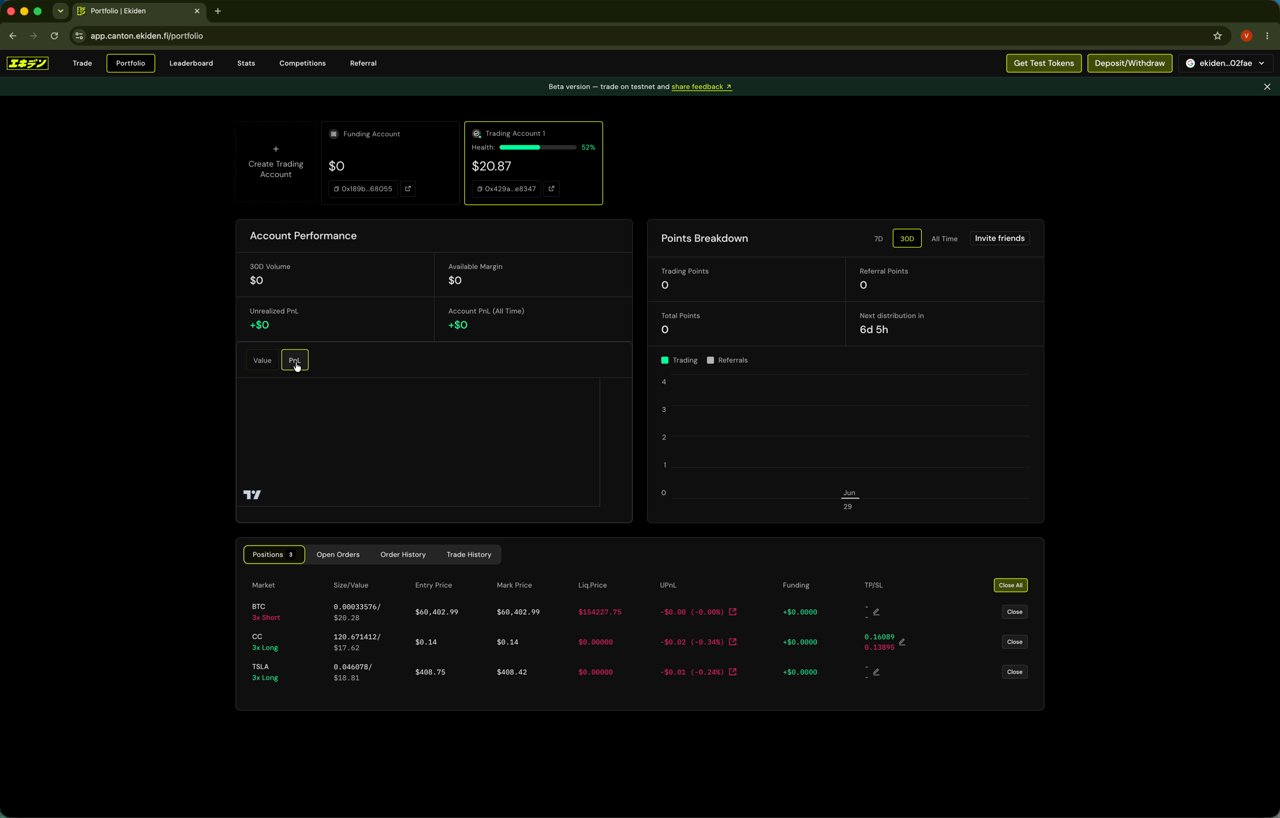 It includes:
* **Funding Account** and **Trading Account** balances, plus a **Health** indicator
* **Account Performance**: 30-day volume, available margin, unrealized PnL, and all-time account PnL
* **Points Breakdown**: trading points and referral points, viewable by 7D / 30D / All Time, with a countdown to the next points distribution
* A unified **Positions** table, plus tabs for **Open Orders**, **Order History**, and **Trade History**
### Reviewing trade history
The **Trade History** tab lists every fill — timestamp, market, side (Buy/Sell), price, size/value, and fee.
It includes:
* **Funding Account** and **Trading Account** balances, plus a **Health** indicator
* **Account Performance**: 30-day volume, available margin, unrealized PnL, and all-time account PnL
* **Points Breakdown**: trading points and referral points, viewable by 7D / 30D / All Time, with a countdown to the next points distribution
* A unified **Positions** table, plus tabs for **Open Orders**, **Order History**, and **Trade History**
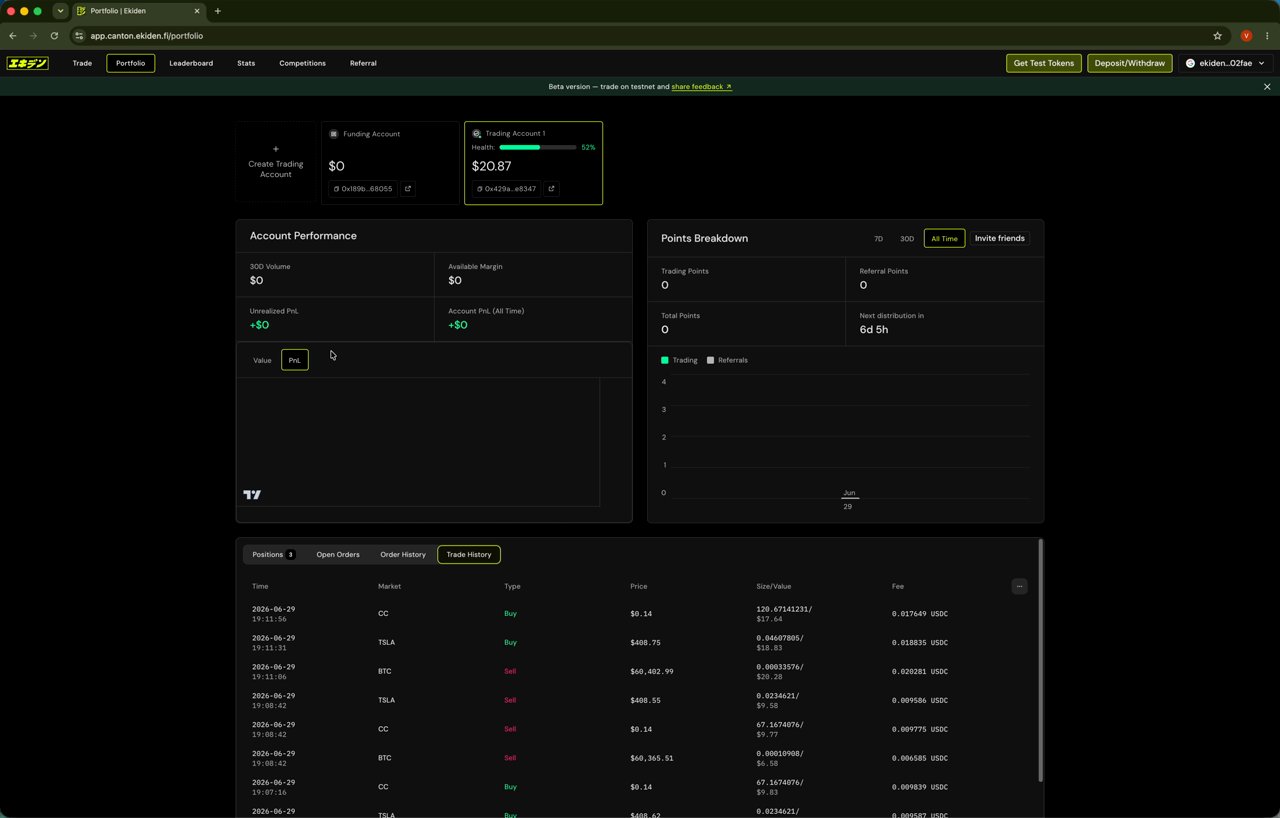
### Reviewing trade history
The **Trade History** tab lists every fill — timestamp, market, side (Buy/Sell), price, size/value, and fee.
 ## Platform-wide stats
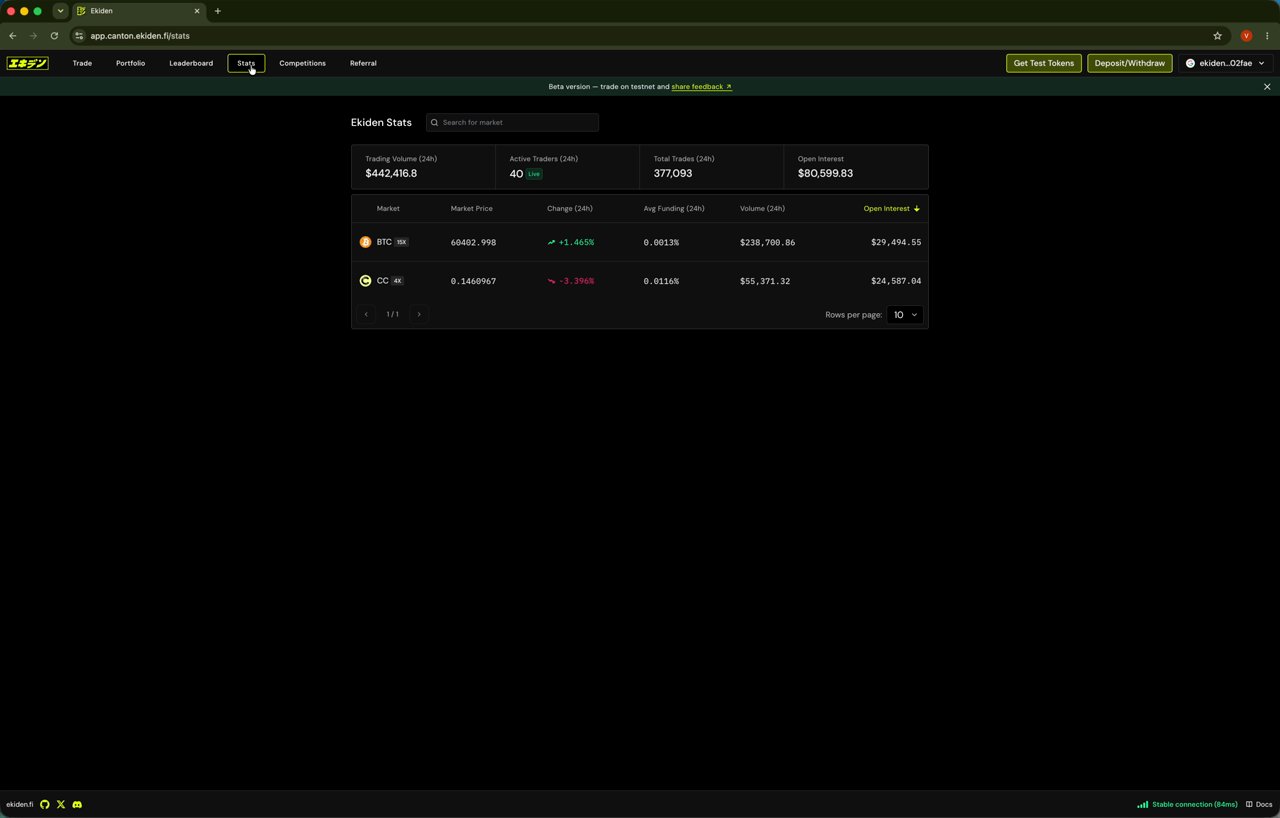
The **Stats** tab shows exchange-level metrics: 24h trading volume, active traders, total trades, and open interest, along with a per-market breakdown (price, 24h change, average funding, volume, and open interest).
## Platform-wide stats
The **Stats** tab shows exchange-level metrics: 24h trading volume, active traders, total trades, and open interest, along with a per-market breakdown (price, 24h change, average funding, volume, and open interest).
 ## Referring other traders
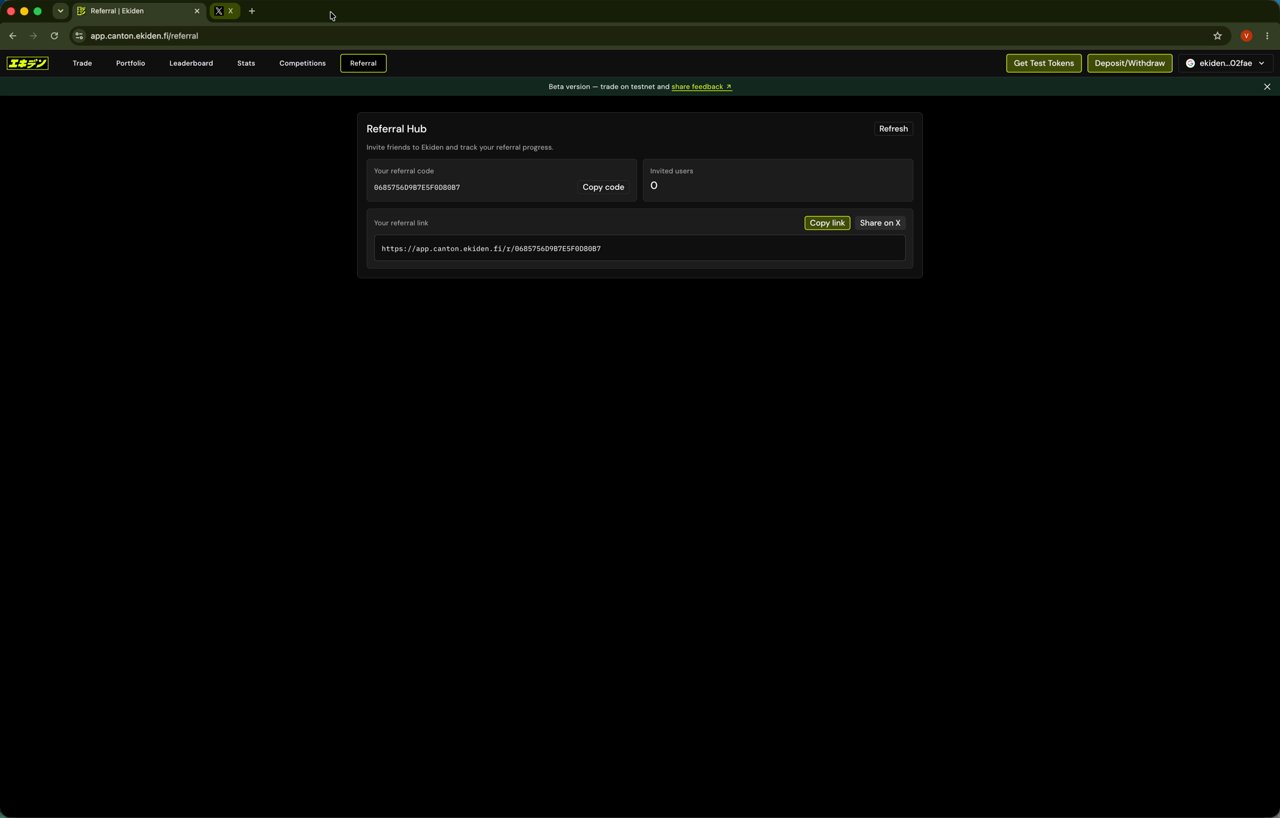
The **Referral** tab gives you a unique referral code and link to share, plus a live count of invited users. You can copy the link directly or share it to X in one click.
## Referring other traders
The **Referral** tab gives you a unique referral code and link to share, plus a live count of invited users. You can copy the link directly or share it to X in one click.
 ## Moving funds between accounts
Use **Deposit/Withdraw → Transfer** to move USDCx between your **Funding Account** and **Trading Account** without leaving the app — for example, pulling margin back out of a Trading Account after closing positions.
## Moving funds between accounts
Use **Deposit/Withdraw → Transfer** to move USDCx between your **Funding Account** and **Trading Account** without leaving the app — for example, pulling margin back out of a Trading Account after closing positions.
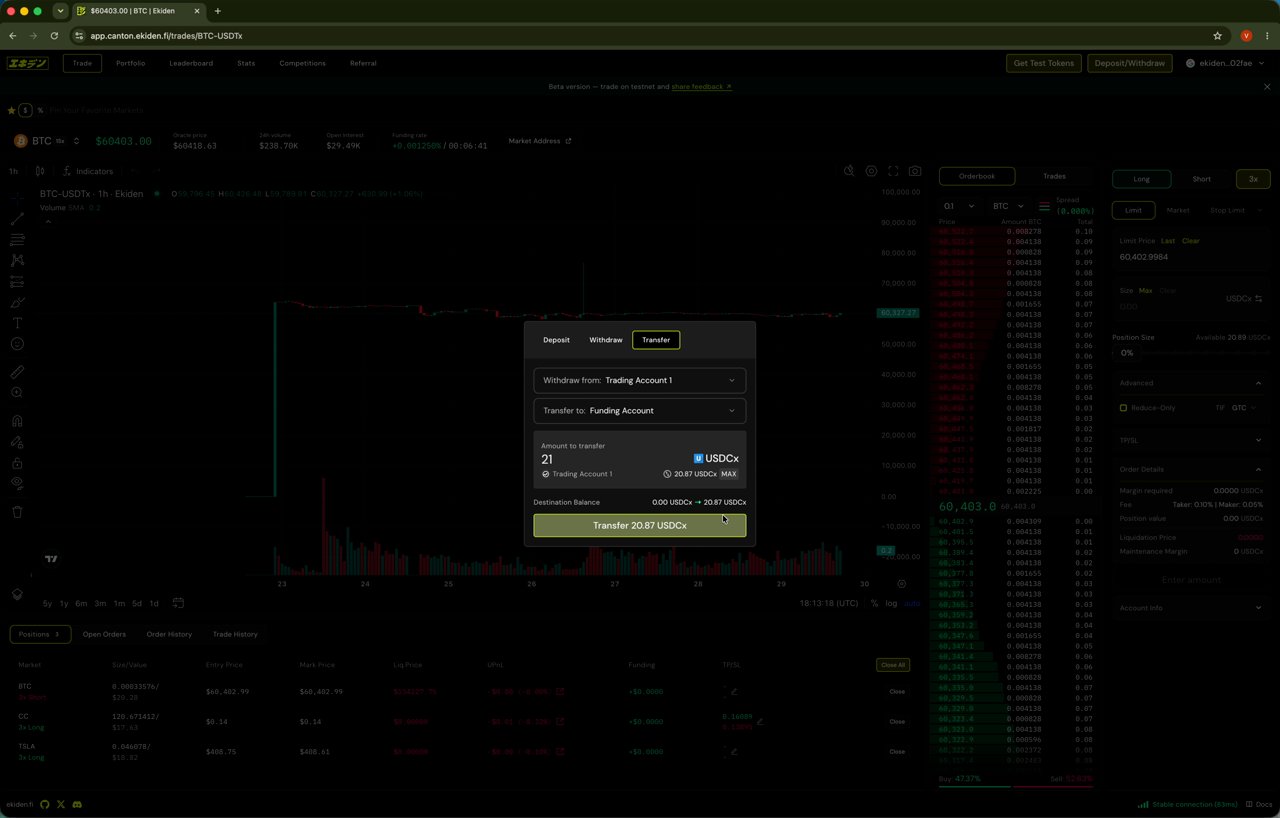 Click **Deposit/Withdraw** in the top navigation bar.
Choose **Transfer**, then set **Withdraw from** and **Transfer to** accounts.
Enter an amount (or click **Max**) and confirm — the destination balance updates immediately.
## Closing positions
From either the Trade screen or the Portfolio Positions table, click **Close** on an individual position, or **Close All** to flatten every open position at once.
Click **Deposit/Withdraw** in the top navigation bar.
Choose **Transfer**, then set **Withdraw from** and **Transfer to** accounts.
Enter an amount (or click **Max**) and confirm — the destination balance updates immediately.
## Closing positions
From either the Trade screen or the Portfolio Positions table, click **Close** on an individual position, or **Close All** to flatten every open position at once.