> ## Documentation Index
> Fetch the complete documentation index at: https://docs.ekiden.fi/llms.txt
> Use this file to discover all available pages before exploring further.
# Getting Started with Ekiden
> Connect your wallet, complete onboarding, and make your first deposit on Ekiden's testnet trading platform.
This guide walks new users through signing up with Google or email, completing the onboarding checklist, and funding a Trading Account on [Ekiden](https://app.cnt.ekiden.fi), a perpetuals trading platform built on Canton Network.
Ekiden is currently in **beta** and runs on testnet with simulated funds. No real assets are at risk while you follow this guide.
## Key concepts before you start
Canton Network works differently from most chains users are familiar with (Ethereum, Solana, etc.). A few concepts explain almost every "why" question that comes up during onboarding.
On most blockchains, a wallet is just a key pair, and the public key (or a hash of it) is your address. Canton doesn't have a single global ledger that everyone reads from — instead, every account is represented by a **Party ID**, a cryptographic identity that lives on a specific **validator (participant) node**.
A Party ID looks like `hint::fingerprint`. On Ekiden specifically, that hint is `Ekiden` — your Party ID starts with **`Ekiden::`** followed by a long cryptographic fingerprint, because **Ekiden operates its own validator (participant) node on Canton Network**. When you sign up, Ekiden's validator is the one that hosts your party and processes your transactions — that's also why you don't need to bring your own separate Canton wallet to get started (see the sign-up flow below).
**Practical effect for you as a user:** your Party ID isn't just an address that *might* have funds — it's tied to a specific validator that actually hosts your data and processes your transactions. Because that validator is Ekiden itself, onboarding is closer to signing into an app than deploying a wallet from scratch.
On a typical public chain, every transaction is visible to everyone. Canton was built for regulated finance, so it does the opposite by default: a transaction's data is only shared with the parties actually involved in it (plus anyone they explicitly designate as an observer). The network's coordination layer (the "synchronizer") only ever sees encrypted blobs, timestamps, and ordering — never your actual trade data.
This is why Ekiden, despite being a public trading venue, doesn't expose a fully public on-chain order book the way an Ethereum DEX might — privacy is enforced at the protocol level, not bolted on.
On Canton, receiving certain assets (like USDCx) isn't automatic the way receiving ETH or SOL is. A token can require a **transfer pre-approval** before it can be deposited directly into your account without you having to manually accept an incoming transfer offer each time.
Practically: **Enable Preapprove** registers your Party ID as willing to receive USDCx directly. If you skip it, deposits would instead arrive as "transfer offers" that you'd have to manually accept one by one — and unaccepted offers can expire (typically within 24 hours) and bounce back to the sender. Pre-approving once removes that friction for every future deposit.
Ekiden is itself a **validator on Canton Network** (see above), which is why sign-up doesn't require installing a separate browser wallet extension. Instead, you sign up or log in with **Google or email/password**, and Ekiden provisions your Party ID (`Ekiden::...`) for you behind that login — the wallet is created and hosted as part of your Ekiden account rather than something you bring from elsewhere.
In practice this means: your Ekiden login **is** your wallet access. There's no separate seed phrase to back up for the wallet itself — account recovery works the same way your Google or email login recovery would. This is a different trust model from a self-custodial browser wallet (like Loop) where you alone hold a seed phrase, or an MPC/institutional custody wallet (like Dfns) with policy-based key controls — Ekiden's model trades some of that self-custody for a much simpler sign-up flow.
Your **Trading Account balance** inside Ekiden (what you see after depositing) is a further, separate layer on top of this: it's the portion of funds you've explicitly moved from your wallet into Ekiden's trading vault, not your whole wallet balance.
Canton Network operators run three parallel environments — **DevNet**, **TestNet**, and **MainNet** — so that applications and wallet integrations can be tested against real network upgrades before anything touches real value. Ekiden's beta runs entirely on **TestNet**:
* All USDCx you claim via **Get Test Tokens** is testnet-only and has no real-world value.
* Network upgrades on testnet can, in principle, reset state — that's expected and is exactly what testnet is for.
* This is also why the onboarding checklist explicitly makes you tick **"I acknowledge that I am trading on a testnet with simulated funds"** before you can sign in — it's a compliance-style confirmation, not just a formality.
## Overview
Link your wallet and complete the 6-step setup checklist.
Claim test tokens and deposit USDCx into your Trading Account.
## Step-by-step setup
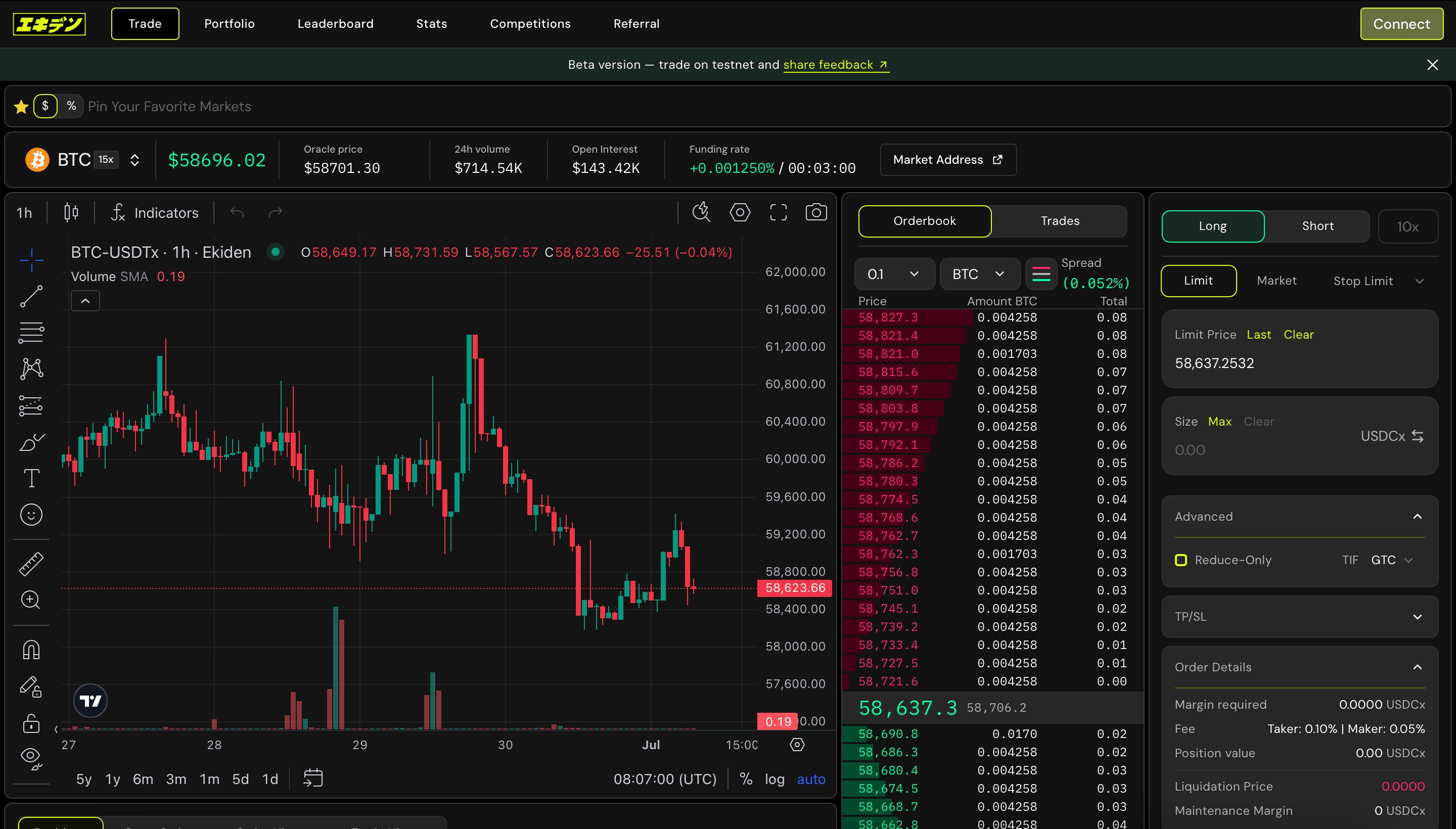
Navigate to a market (e.g. `BTC-USDTx`) on the **Trade** tab. Before connecting, the order panel and **Positions** table are visible but inactive — you'll see a **Connect** button in the top-right corner.
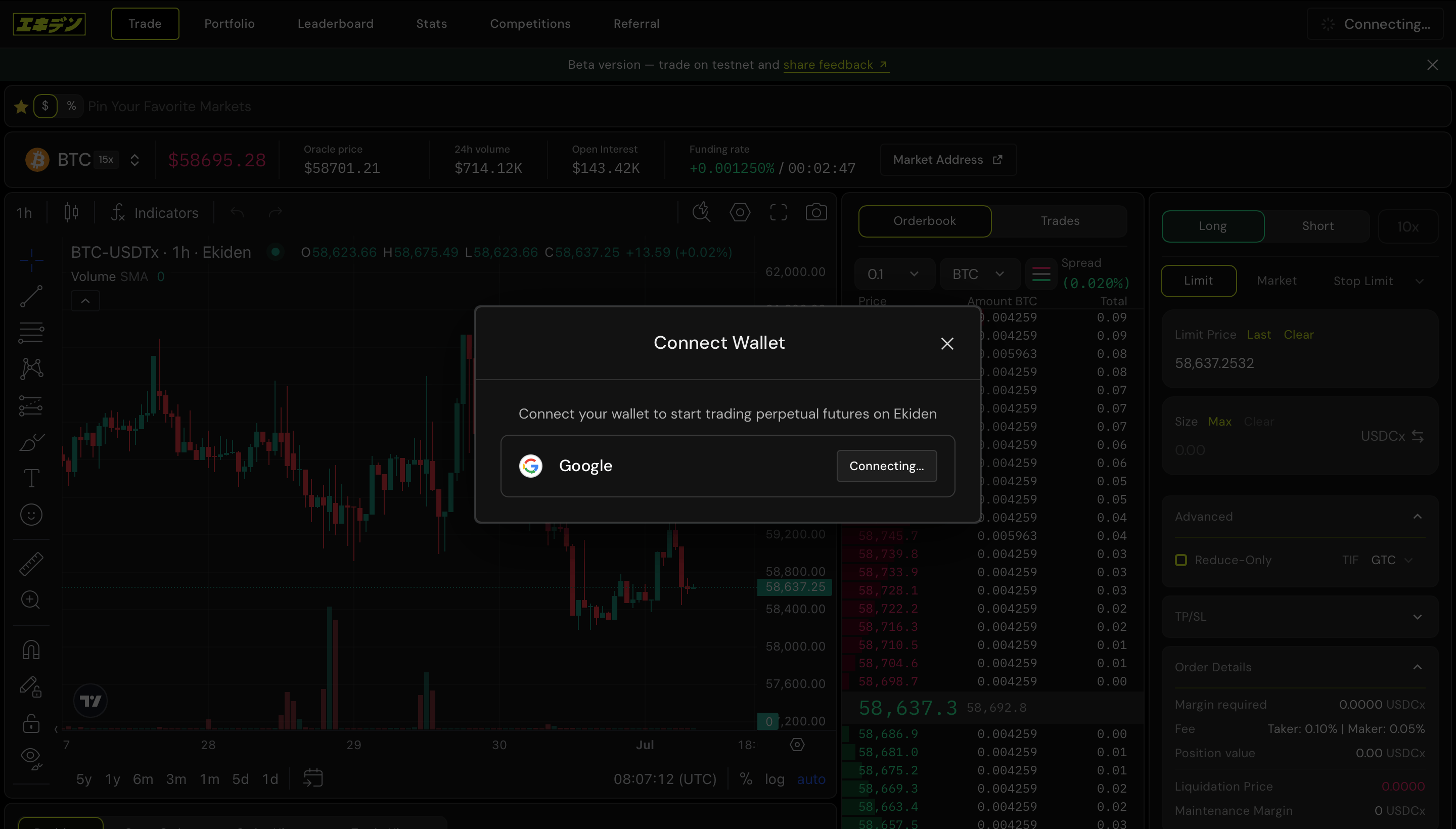
 Clicking **Connect** opens the **Connect Wallet** modal: *"Connect your wallet to start trading perpetual futures on Ekiden."* Currently there's a single option — **Google**.
 **There's no separate browser-wallet extension to install here.** Because Ekiden runs its own validator on Canton Network, your Ekiden login itself provisions your wallet (Party ID `Ekiden::...`) — see *"Custodial or self-custodial"* above for what this means for key ownership.
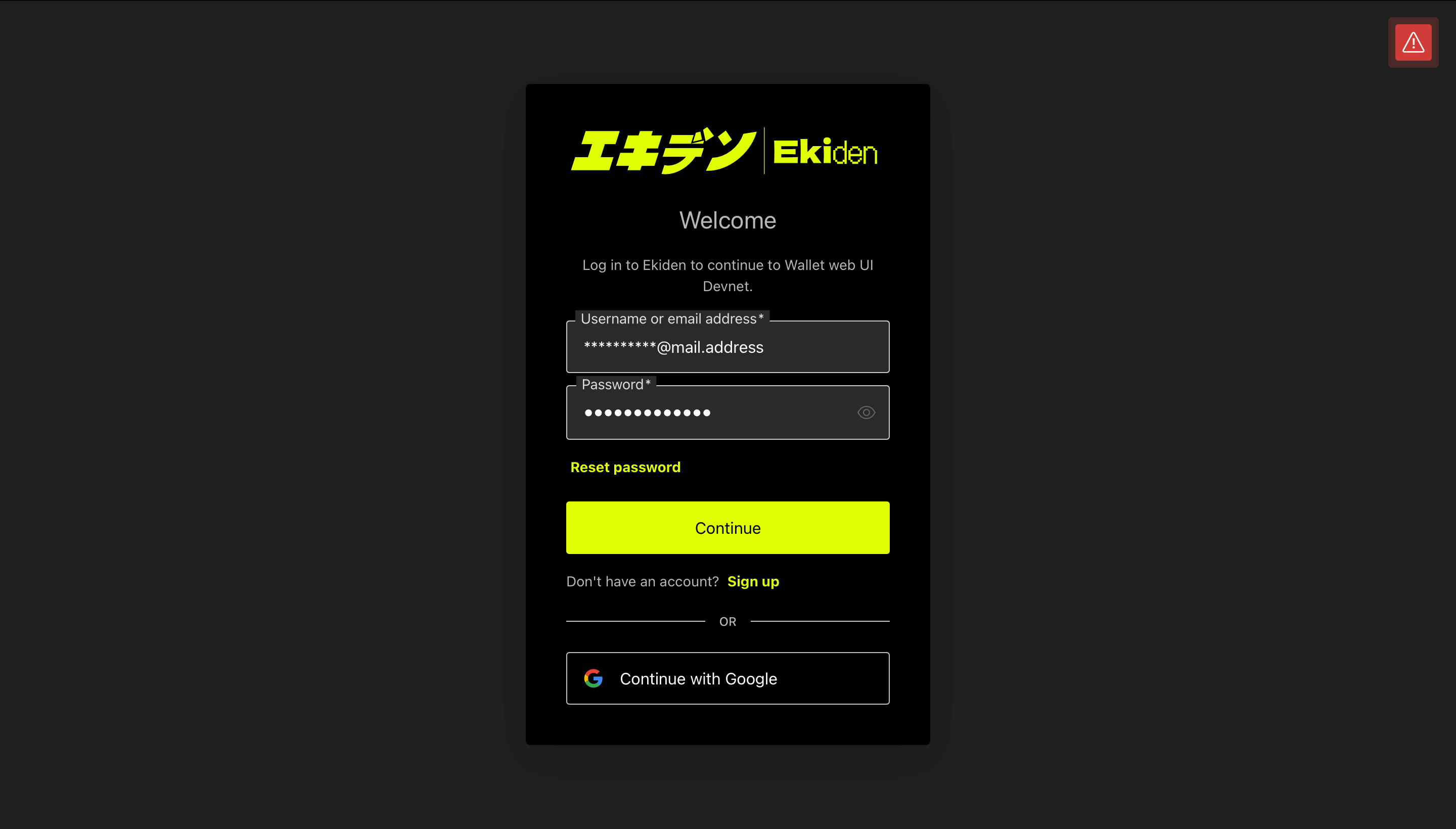
You're redirected to Ekiden's hosted login screen (*"Log in to Ekiden to continue to Wallet web UI"*). From here you can either:
* Enter an existing **username/email + password** and click **Continue**, or
* Click **Sign up** if this is your first time, or
* Click **Continue with Google** to skip password entry entirely
**There's no separate browser-wallet extension to install here.** Because Ekiden runs its own validator on Canton Network, your Ekiden login itself provisions your wallet (Party ID `Ekiden::...`) — see *"Custodial or self-custodial"* above for what this means for key ownership.
You're redirected to Ekiden's hosted login screen (*"Log in to Ekiden to continue to Wallet web UI"*). From here you can either:
* Enter an existing **username/email + password** and click **Continue**, or
* Click **Sign up** if this is your first time, or
* Click **Continue with Google** to skip password entry entirely
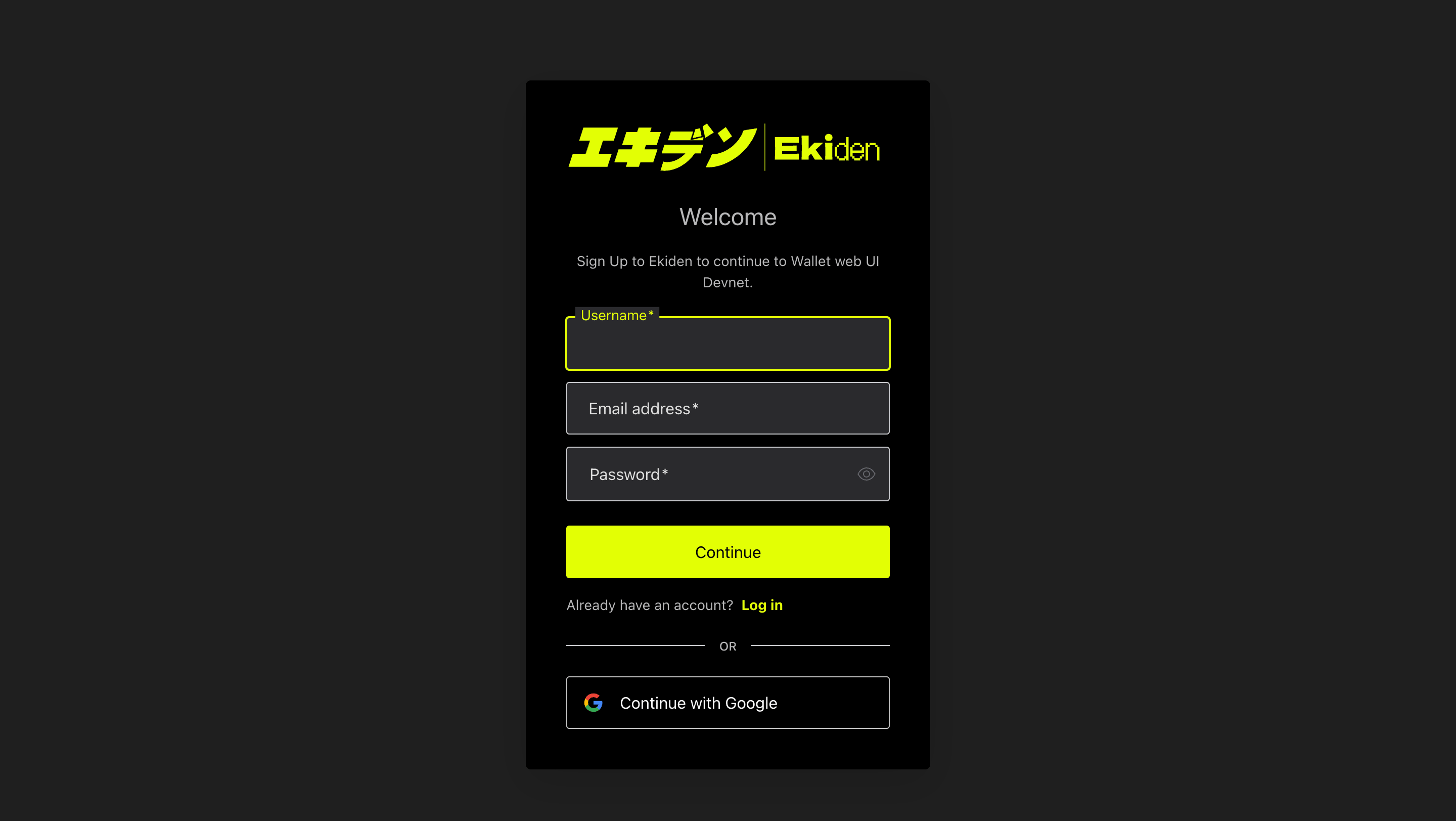
 Clicking **Sign up** swaps the form to registration mode — the same screen, but asking for a **Username**, **Email address**, and **Password** to create a brand-new account. **Continue with Google** is still available here too, and skips this form entirely.
 Back on the Ekiden app, you'll be asked to confirm two checkboxes before signing the session:
* **I accept the Terms of Use**
* **I acknowledge that I am trading on a testnet with simulated funds**
Check both boxes and click **Agree and Sign** to continue.
Back on the Ekiden app, you'll be asked to confirm two checkboxes before signing the session:
* **I accept the Terms of Use**
* **I acknowledge that I am trading on a testnet with simulated funds**
Check both boxes and click **Agree and Sign** to continue.
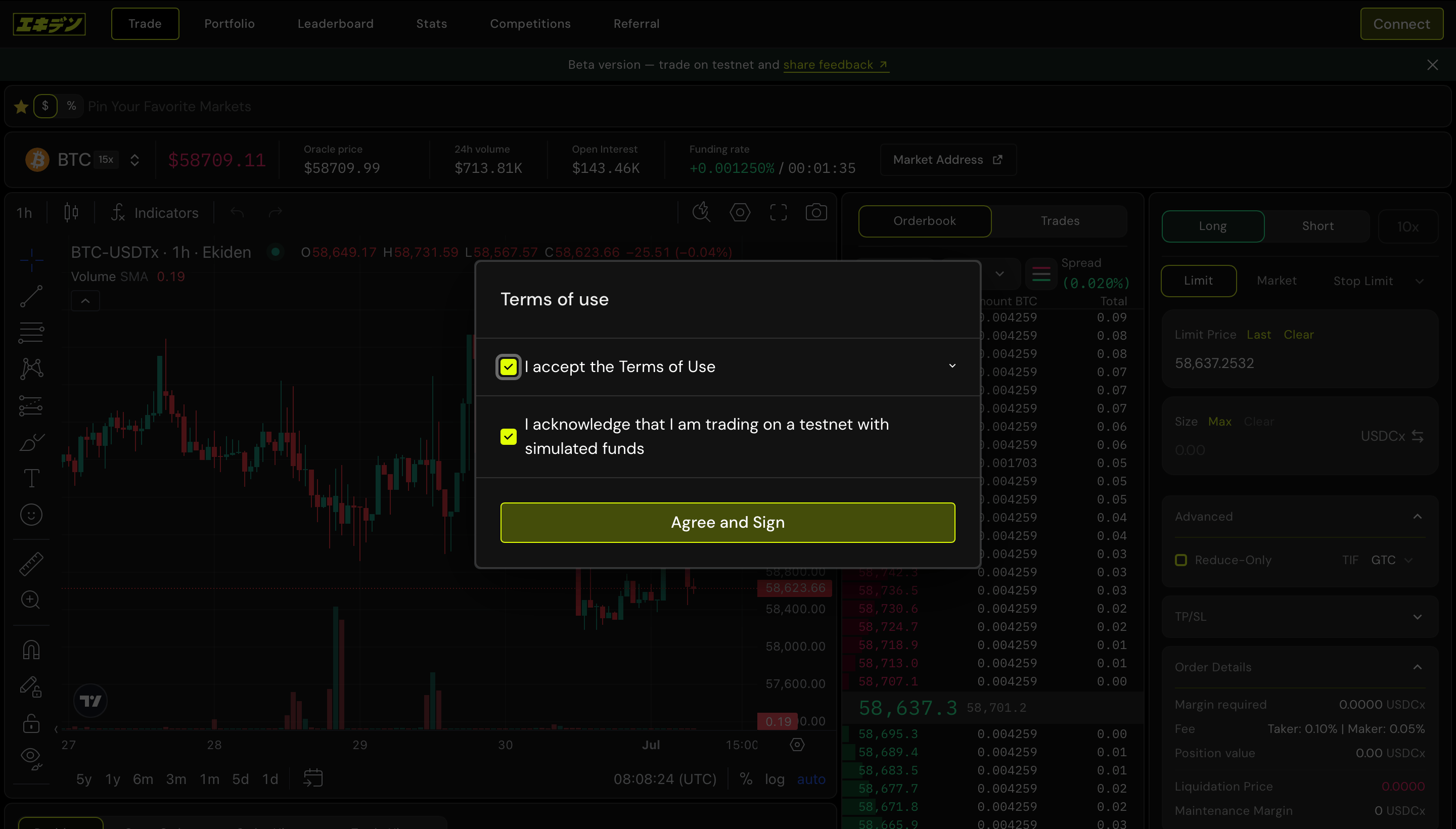 The second checkbox isn't boilerplate — it's there specifically because testnet USDCx looks and behaves exactly like the real thing in the UI (real-looking prices, real-looking PnL). Confirming it is Ekiden's way of making sure you can't later mistake testnet activity for real trading.
Once you're signed in, the **Welcome to Ekiden!** onboarding modal walks you through six sequential steps to get your wallet fully set up for trading:
1. **Switch Network** – points your wallet at Canton's TestNet instead of MainNet. Every Canton wallet can target multiple networks (DevNet/TestNet/MainNet); this step makes sure you and Ekiden are looking at the same one.
2. **Enable Preapprove** – registers your Party ID to receive USDCx without manually accepting a transfer offer for every deposit (see *"What does Enable Preapprove actually do"* above).
3. **Get Test Tokens** – claims free testnet USDCx from a faucet into your **Funding Account**. This only works on testnet — there's no equivalent free-money button on mainnet.
4. **Link Accounts** – links your `Ekiden::...` Party ID to your Ekiden user profile, so the app knows which on-chain identity to associate with your trading history, points, and referrals.
5. **Sign In** – you sign a message to authenticate the session. This proves control of the Party ID without exposing any private key material.
6. **Deposit** – moves USDCx from your wallet (Funding Account) into Ekiden's trading vault, where it becomes usable margin (your **Trading Account** balance).
Each step shows a live status badge (**Done**, **Loading...**, or **Pending**) as it completes — and each step depends on the previous one, so they always complete strictly in order.
The second checkbox isn't boilerplate — it's there specifically because testnet USDCx looks and behaves exactly like the real thing in the UI (real-looking prices, real-looking PnL). Confirming it is Ekiden's way of making sure you can't later mistake testnet activity for real trading.
Once you're signed in, the **Welcome to Ekiden!** onboarding modal walks you through six sequential steps to get your wallet fully set up for trading:
1. **Switch Network** – points your wallet at Canton's TestNet instead of MainNet. Every Canton wallet can target multiple networks (DevNet/TestNet/MainNet); this step makes sure you and Ekiden are looking at the same one.
2. **Enable Preapprove** – registers your Party ID to receive USDCx without manually accepting a transfer offer for every deposit (see *"What does Enable Preapprove actually do"* above).
3. **Get Test Tokens** – claims free testnet USDCx from a faucet into your **Funding Account**. This only works on testnet — there's no equivalent free-money button on mainnet.
4. **Link Accounts** – links your `Ekiden::...` Party ID to your Ekiden user profile, so the app knows which on-chain identity to associate with your trading history, points, and referrals.
5. **Sign In** – you sign a message to authenticate the session. This proves control of the Party ID without exposing any private key material.
6. **Deposit** – moves USDCx from your wallet (Funding Account) into Ekiden's trading vault, where it becomes usable margin (your **Trading Account** balance).
Each step shows a live status badge (**Done**, **Loading...**, or **Pending**) as it completes — and each step depends on the previous one, so they always complete strictly in order.
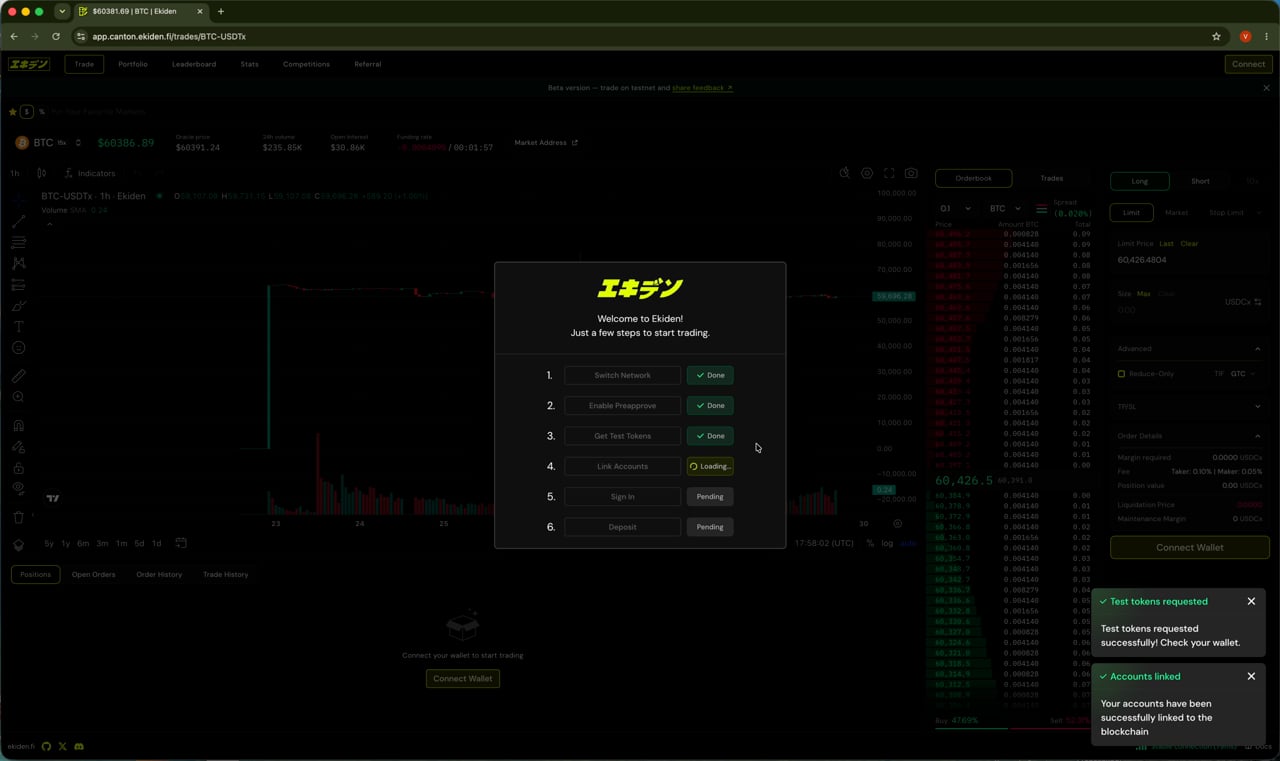 If a step shows **Loading...** for more than a few seconds, check for a pending confirmation elsewhere in the flow before retrying.
Open **Deposit/Withdraw → Deposit**, choose the destination (**Trading Account 1**), enter an amount of **USDCx**, and confirm. Your wallet balance moves into the vault and becomes available as trading margin.
If a step shows **Loading...** for more than a few seconds, check for a pending confirmation elsewhere in the flow before retrying.
Open **Deposit/Withdraw → Deposit**, choose the destination (**Trading Account 1**), enter an amount of **USDCx**, and confirm. Your wallet balance moves into the vault and becomes available as trading margin.
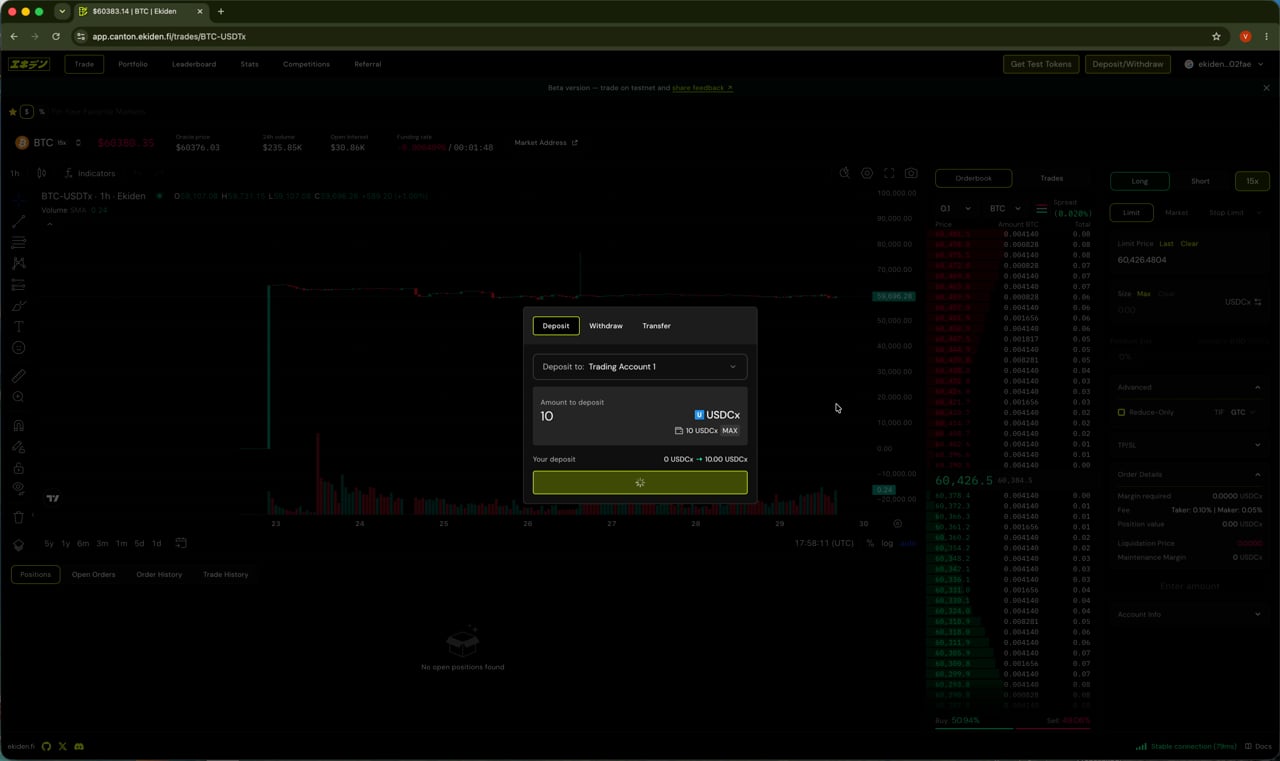 **Why "USDCx" and not plain USDC?** The `x` suffix marks it as the Canton-native representation of USDC used inside Canton's token standard (CIP-56), as opposed to USDC on Ethereum or another chain. It's what lets USDC move through Canton's privacy and settlement model rather than being a wrapped bridge token.
**Why two accounts (Funding vs Trading)?** Splitting "money in your wallet/vault" (Funding Account) from "money actively at risk in the market" (Trading Account) is a common exchange pattern — it lets you hold a balance on Ekiden without it being exposed to a specific market's liquidation logic until you explicitly move it into a Trading Account.
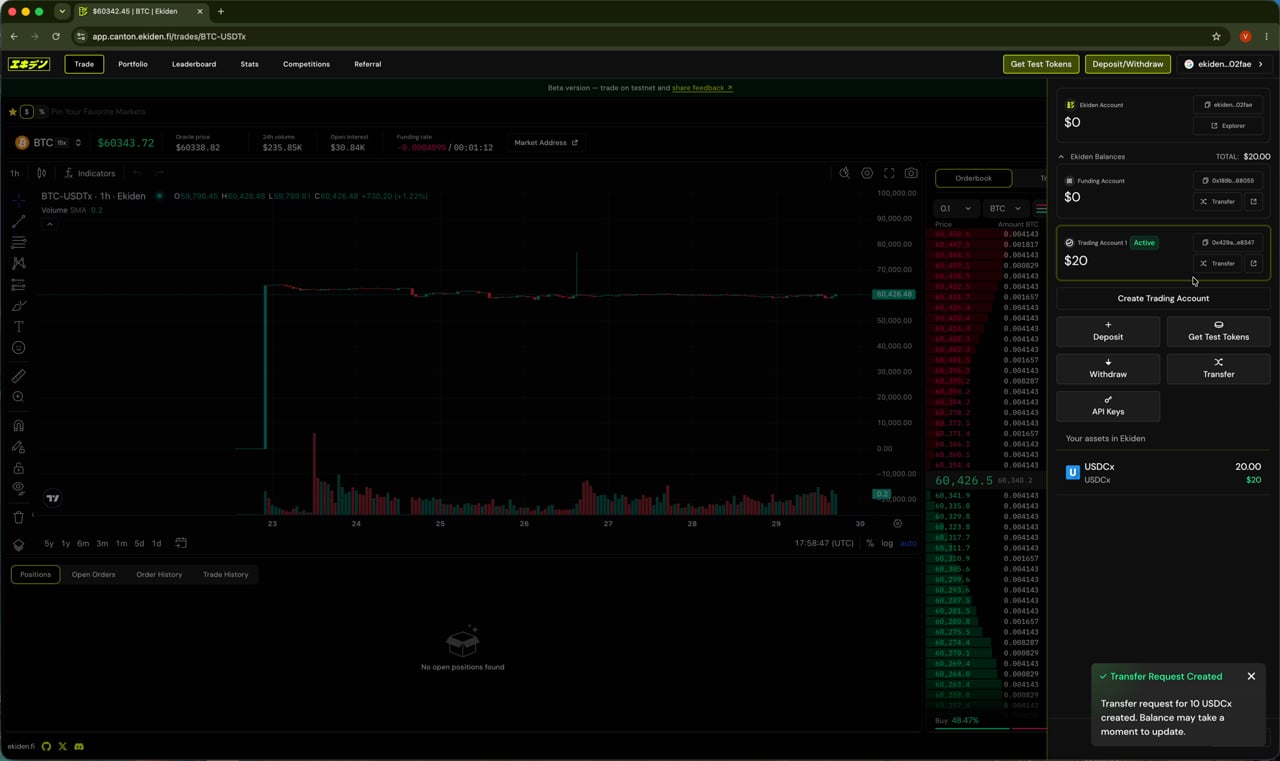
Once the deposit confirms, open the account panel (top-right) to verify:
* **Ekiden Balances** total
* **Trading Account 1** status (`Active`) and balance
* Your assets list (e.g. `USDCx`)
**Why "USDCx" and not plain USDC?** The `x` suffix marks it as the Canton-native representation of USDC used inside Canton's token standard (CIP-56), as opposed to USDC on Ethereum or another chain. It's what lets USDC move through Canton's privacy and settlement model rather than being a wrapped bridge token.
**Why two accounts (Funding vs Trading)?** Splitting "money in your wallet/vault" (Funding Account) from "money actively at risk in the market" (Trading Account) is a common exchange pattern — it lets you hold a balance on Ekiden without it being exposed to a specific market's liquidation logic until you explicitly move it into a Trading Account.
Once the deposit confirms, open the account panel (top-right) to verify:
* **Ekiden Balances** total
* **Trading Account 1** status (`Active`) and balance
* Your assets list (e.g. `USDCx`)
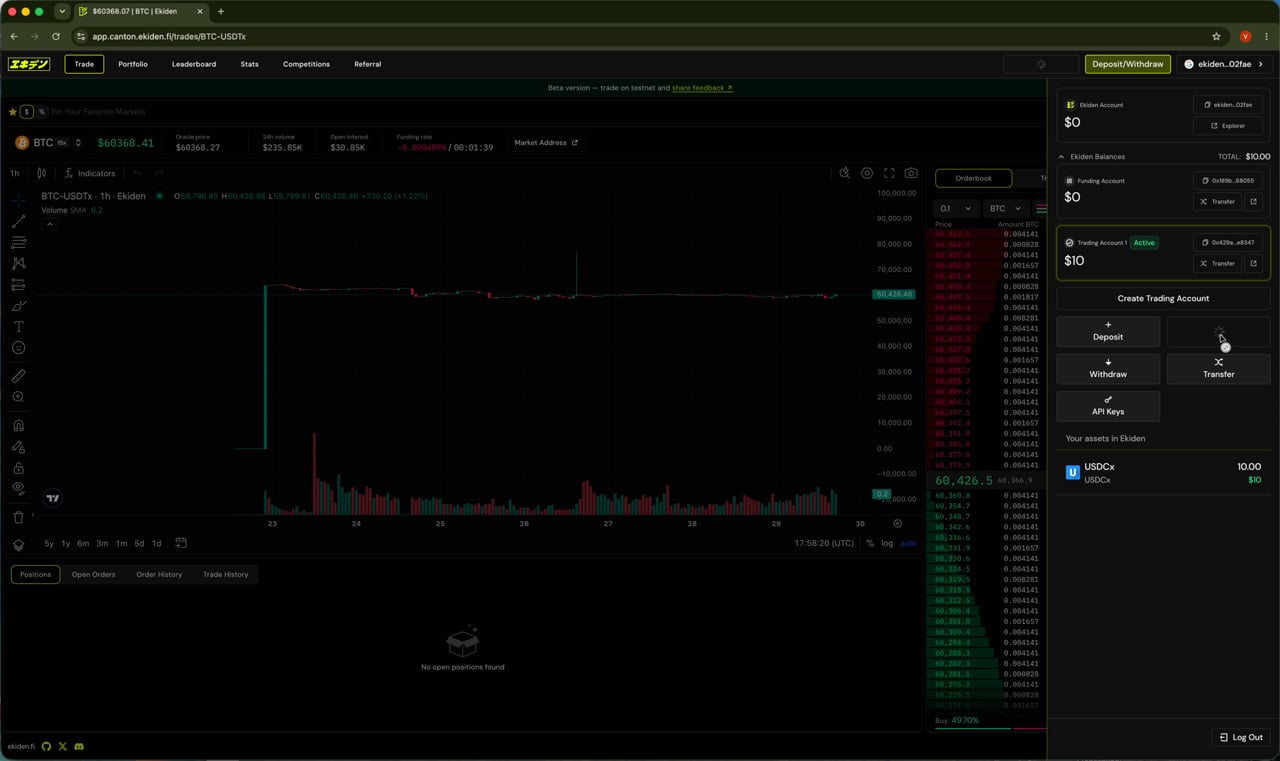 Click **Get Test Tokens** at any time to claim another batch of testnet USDCx into your **Funding Account**, then use **Transfer** to move it into your **Trading Account**. Balances update across the Funding Account, Trading Account, and your total assets.
 ## What's next
Once your Trading Account is funded, you're ready to place orders.
Learn how to open positions, set leverage, manage TP/SL, and use the Portfolio, Stats, and Referral pages.
## What's next
Once your Trading Account is funded, you're ready to place orders.
Learn how to open positions, set leverage, manage TP/SL, and use the Portfolio, Stats, and Referral pages.